 Video EditorOpen the editor
How to make karaoke-style captions with highlighted words
Karaoke captions light up each word as it is spoken. They keep viewers watching and are a popular look on TikTok, Reels and Shorts.
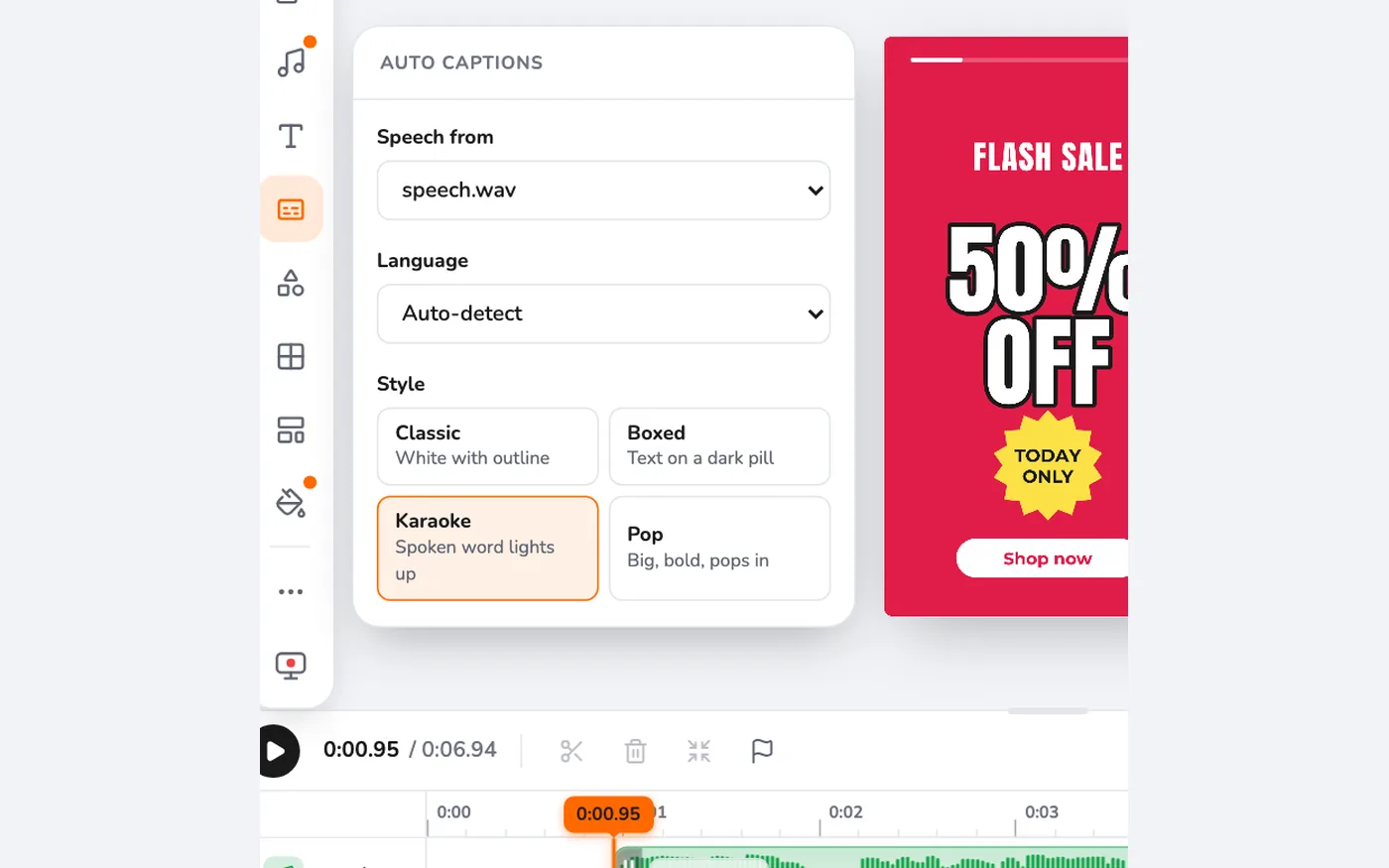
1Generate captions with the Karaoke style
Open Auto captions, pick your speech source and language, choose the Karaoke card and press Generate captions.
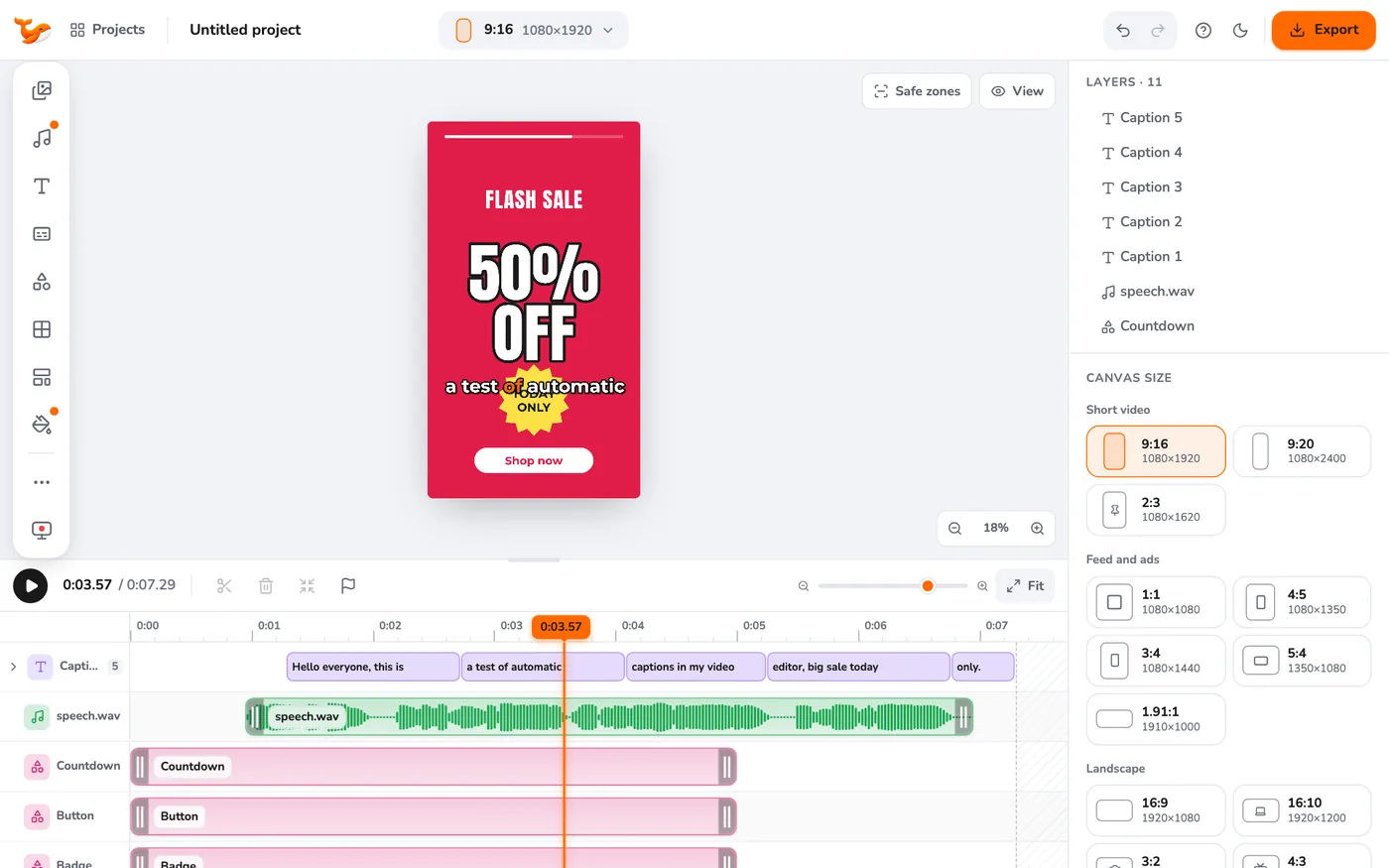
2Check the highlight
Play the video or move the playhead. The word being spoken takes the highlight colour and the others stay white.
3Adjust position and size
Choose Top, Middle or Bottom in the panel. Keep captions out of the area that apps cover, using safe zones.
Tips
- Short caption lines of three to five words work best on phones.
- Use the font menu on a selected caption to change its look to match your brand.
Frequently asked questions
Can I change the highlight colour?
Select a caption, open its text colour options and pick the colour. Regenerate with the same style to apply it to all captions.
Try it yourself
Video Editor runs in your browser. No account, no uploads.
Open the editorRelated guides
CaptionsAdd automatic captions to a video (on your device)Generate captions from speech without uploading anything. Choose a style, fix words and export captioned videos for Reels, TikTok and Shorts.EditingHow to add and style text on a videoAdd titles and captions to a video, choose fonts, colours, outline and shadow, and animate text in and out.DesignSet up a brand kit: colours, font and logo watermarkSave your brand colours and font, then apply them in one click and stamp your logo as a watermark in any corner.