 Video EditorOpen the editor
Set up a brand kit: colours, font and logo watermark
Make every video look like yours. The brand kit keeps your colours, font and logo handy so you can apply them in a click.
1Open the Brand kit
Open More tools and choose Brand kit.
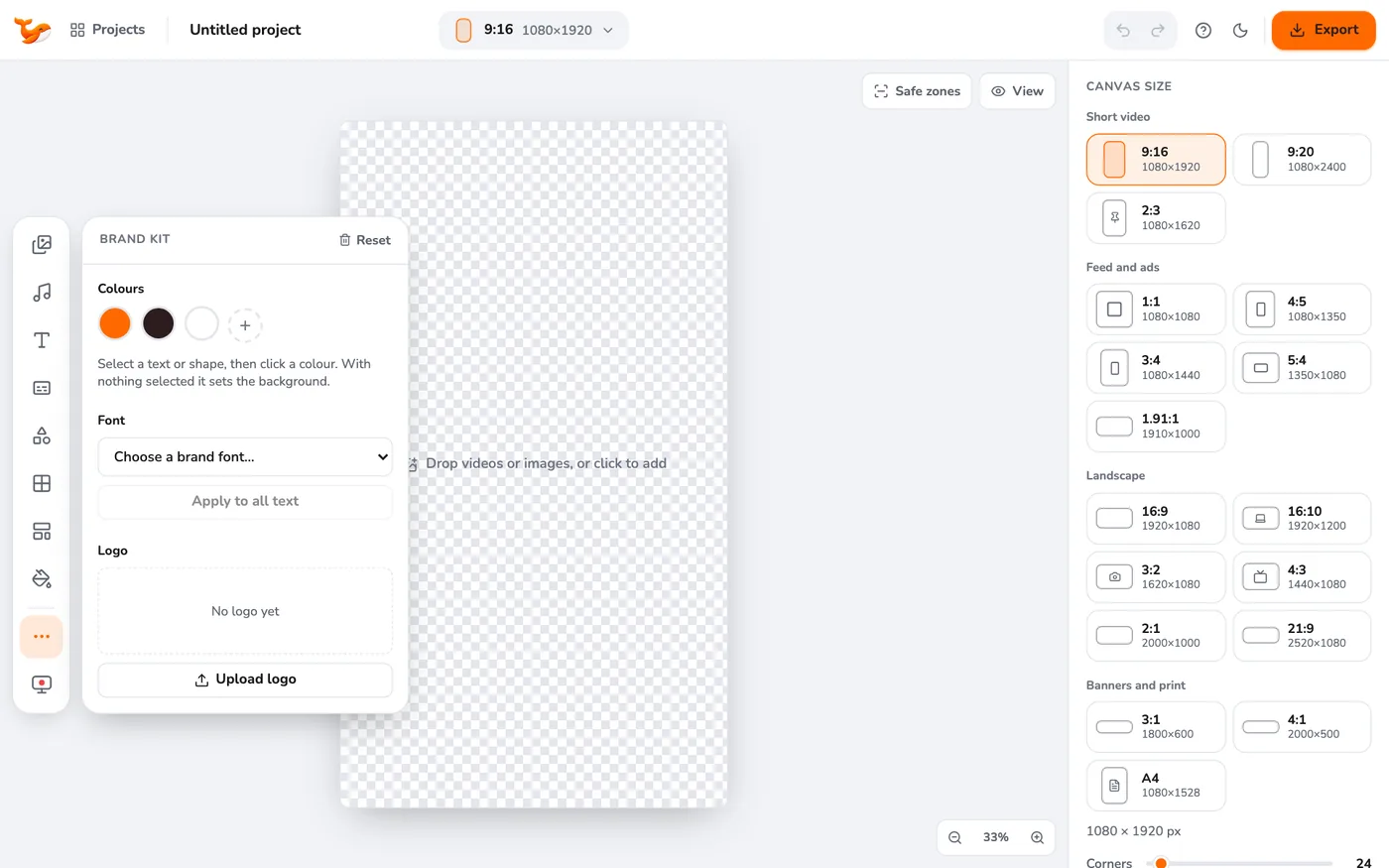
2Add colours
Use the dashed circle to add your brand colours. Click a colour to apply it to the selected layer, or to the background if nothing is selected.
3Choose a brand font
Pick your font from the list. It applies to new text and you can apply it to existing text from the panel.
4Add your logo
Upload your logo, then press a corner button to add it as a watermark in that corner. Resize and move it like any layer.
Tips
- Keep the logo small and semi-transparent so it does not distract.
- The brand kit is saved in your browser, so it is there next time.
Frequently asked questions
Is the brand kit shared between devices?
No. It is stored locally in your browser. Export a project backup to move work between devices.
Try it yourself
Video Editor runs in your browser. No account, no uploads.
Open the editorRelated guides
Social and adsUse ad templates to make a social ad fastStart from 50+ ready-made ad templates for sales, product launches, testimonials, events and hooks. Swap the text and photos and export.EditingHow to add and style text on a videoAdd titles and captions to a video, choose fonts, colours, outline and shadow, and animate text in and out.Social and adsA/B test your ads: make and export variantsCreate versions of an ad with a different headline, background or music and export them all in one go.