 Video EditorOpen the editor
How to add and style text on a video
Text is the fastest way to make a video clearer and more engaging. You can type directly on the canvas and style it with a compact toolbar.
1Add a text layer
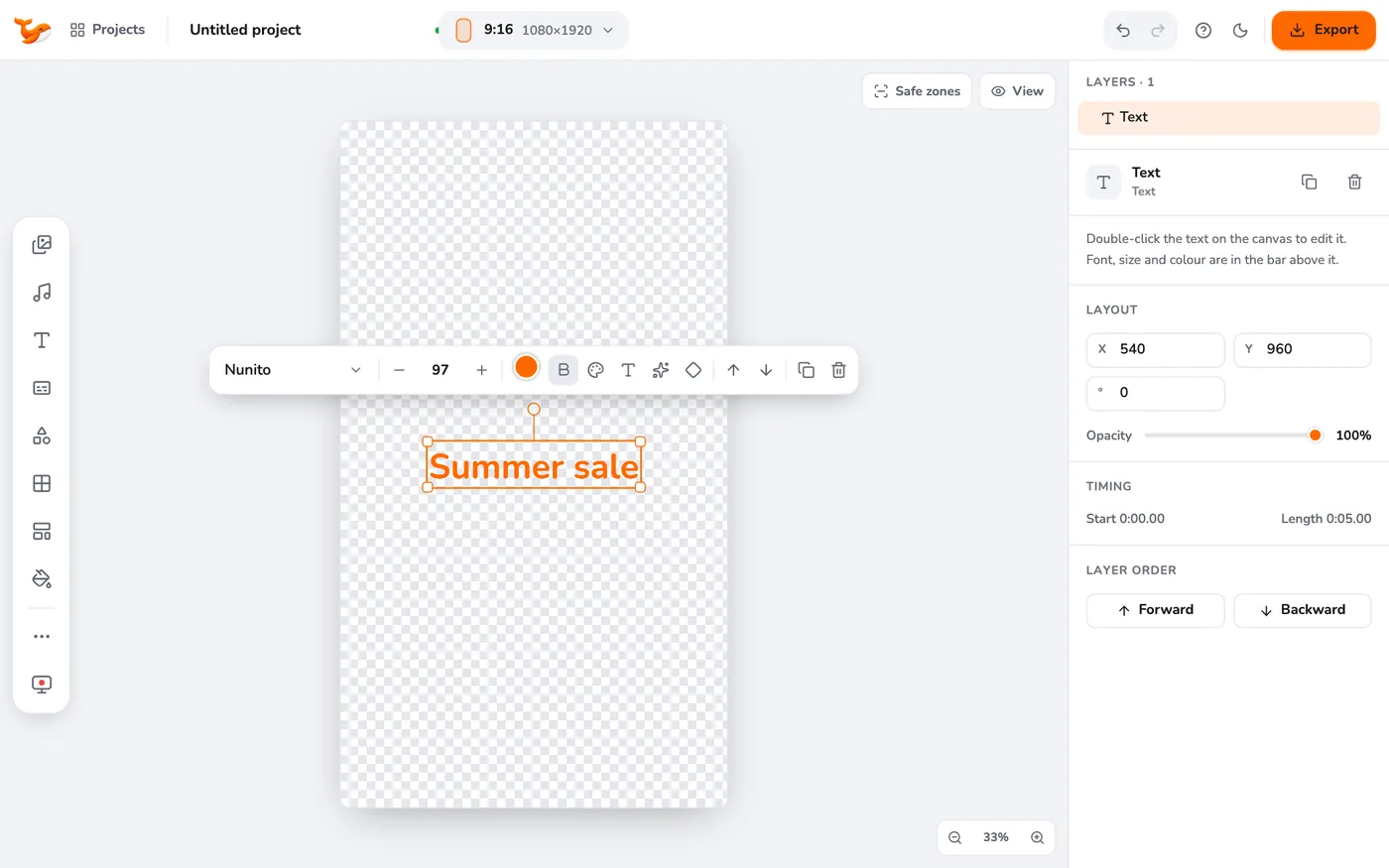
Click Add text in the left toolbar. A text box appears in the middle and goes straight into edit mode, so just start typing. Press Esc when you are done. Double-click the text later to edit it again.
2Choose a font
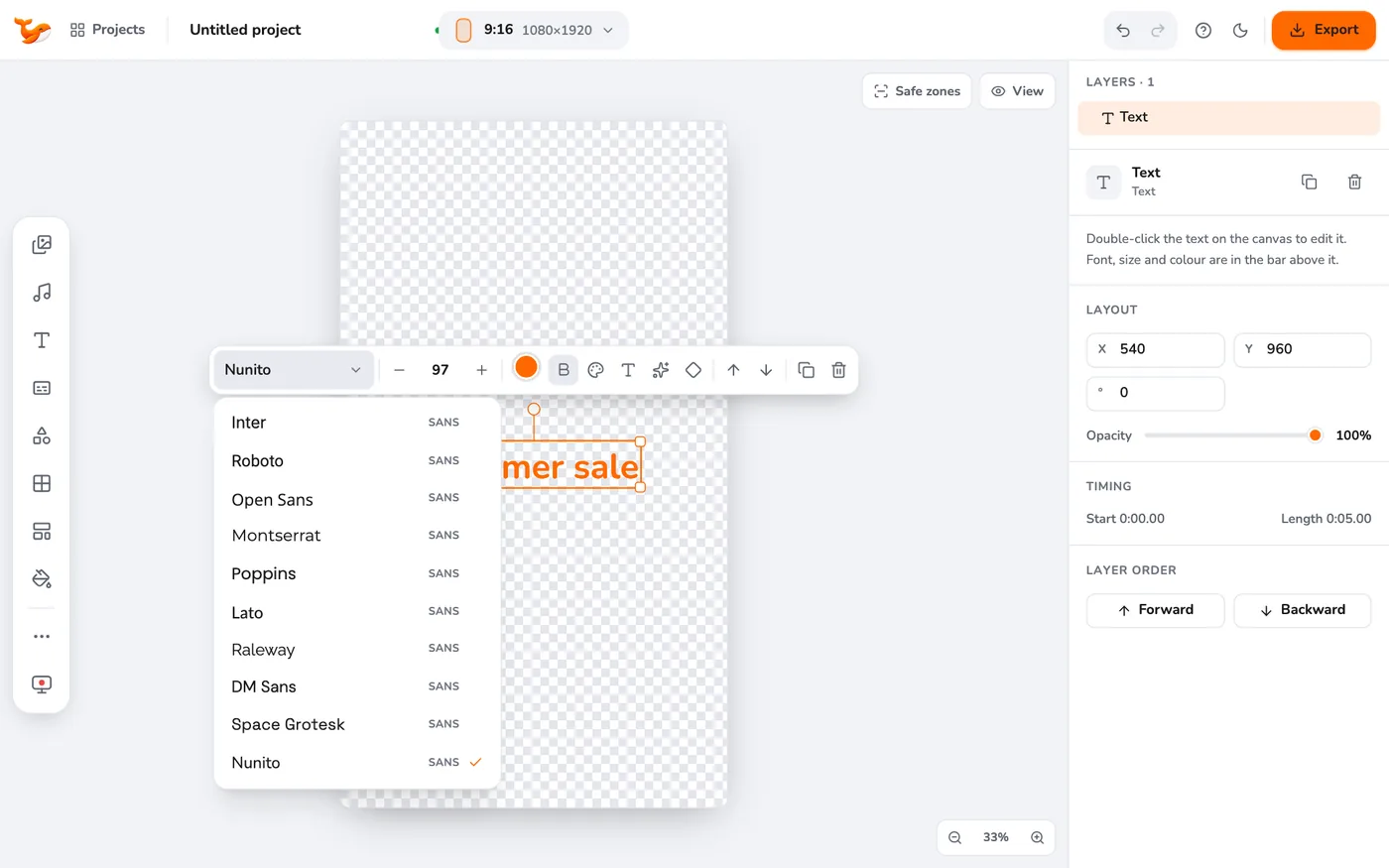
Use the font menu in the toolbar above the text. There are about 27 fonts grouped as Sans, Serif, Display, Script, Handwriting and more. Most include Cyrillic letters too.
3Size, colour and weight
Use the smaller and larger buttons or type a size. Click the colour dot to change the text colour and the B for bold.
4Make it readable
Open Style for letter spacing and line height, and add an outline, a shadow or a background pill behind the text. These make text readable on any footage.
5Animate it
Use the sparkle button (Animate) to choose an enter and exit animation and set how long each lasts.
Tips
Frequently asked questions
Can I use my own font?
The editor ships with a curated set of fonts and does not currently load custom font files.
How do I make text appear later?
Select the text layer on the timeline and drag its clip to the time you want, or trim it.
Video Editor runs in your browser. No account, no uploads.
Open the editor