 Video EditorOpen the editor
Safe zones for TikTok, Instagram Reels, Stories and YouTube Shorts
Every short-video app draws buttons, captions and bars on top of your video. If your text sits underneath, nobody can read it. Safe zones show you what is covered before you export.
In this guide
1Open Safe zones
Click Safe zones at the top right of the canvas. The menu only lists guides that fit your canvas ratio. On a 9:16 canvas you get Instagram Story, Instagram Reel, TikTok, YouTube Shorts, the Instagram profile grid crop and a text margin.
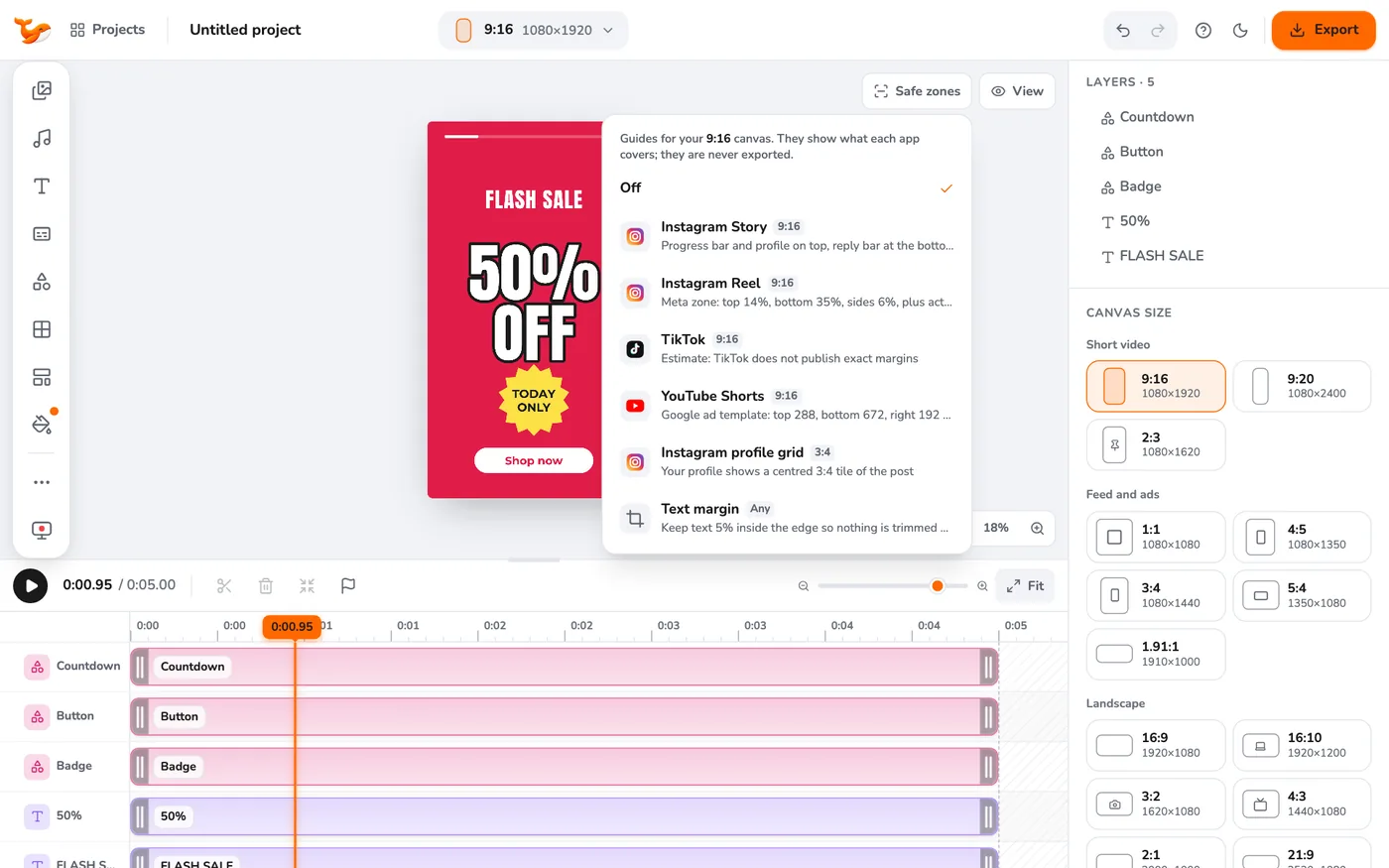
2Preview the app
Choose a platform. App preview draws a mock of what the app puts over your video: tabs and search, like, comment and share buttons, the username and caption, and the call-to-action bar.
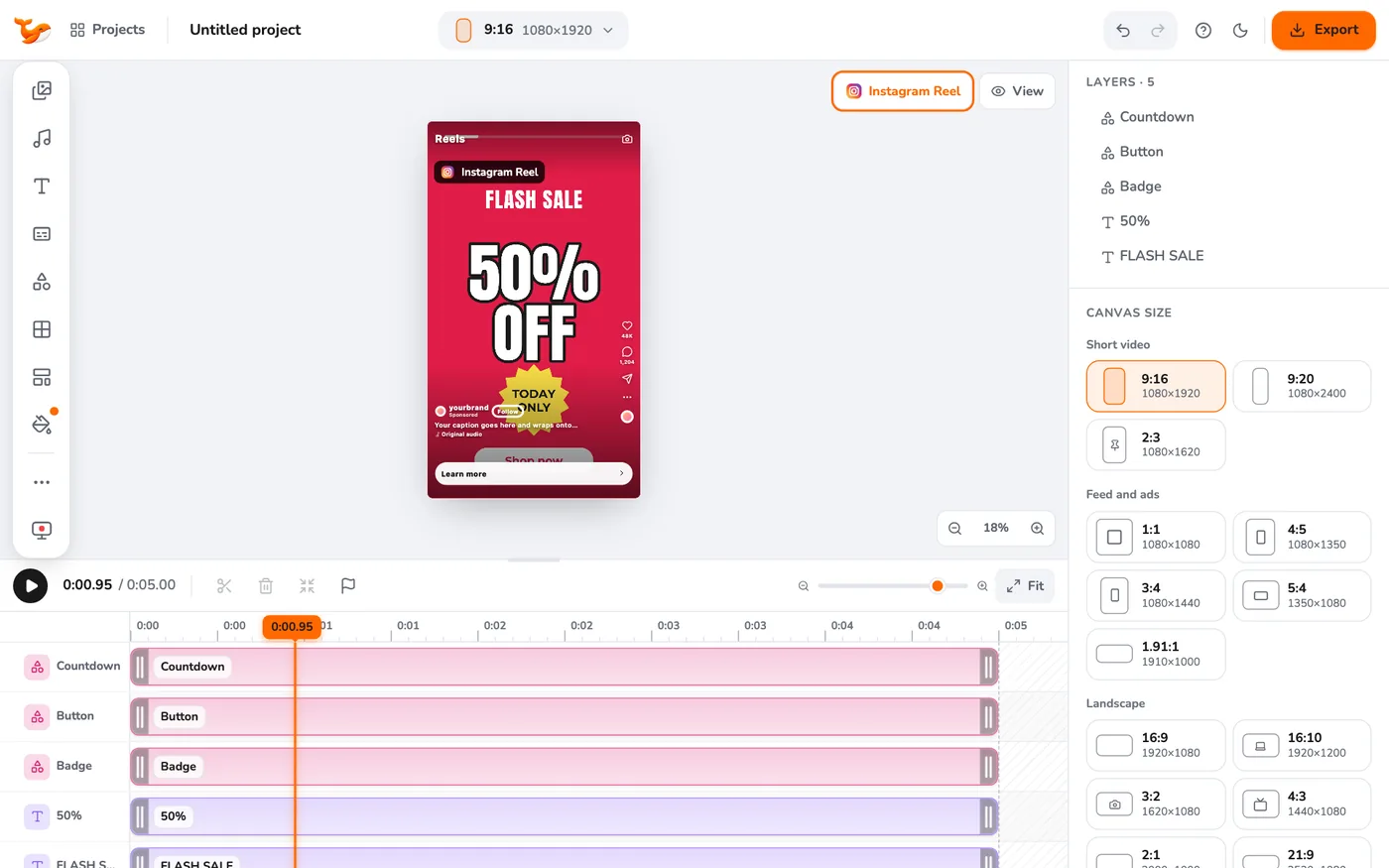
3Or show just the safe area
Switch to Safe area only to dim the covered margins and label what sits there. Keep important text and faces inside the clear area.
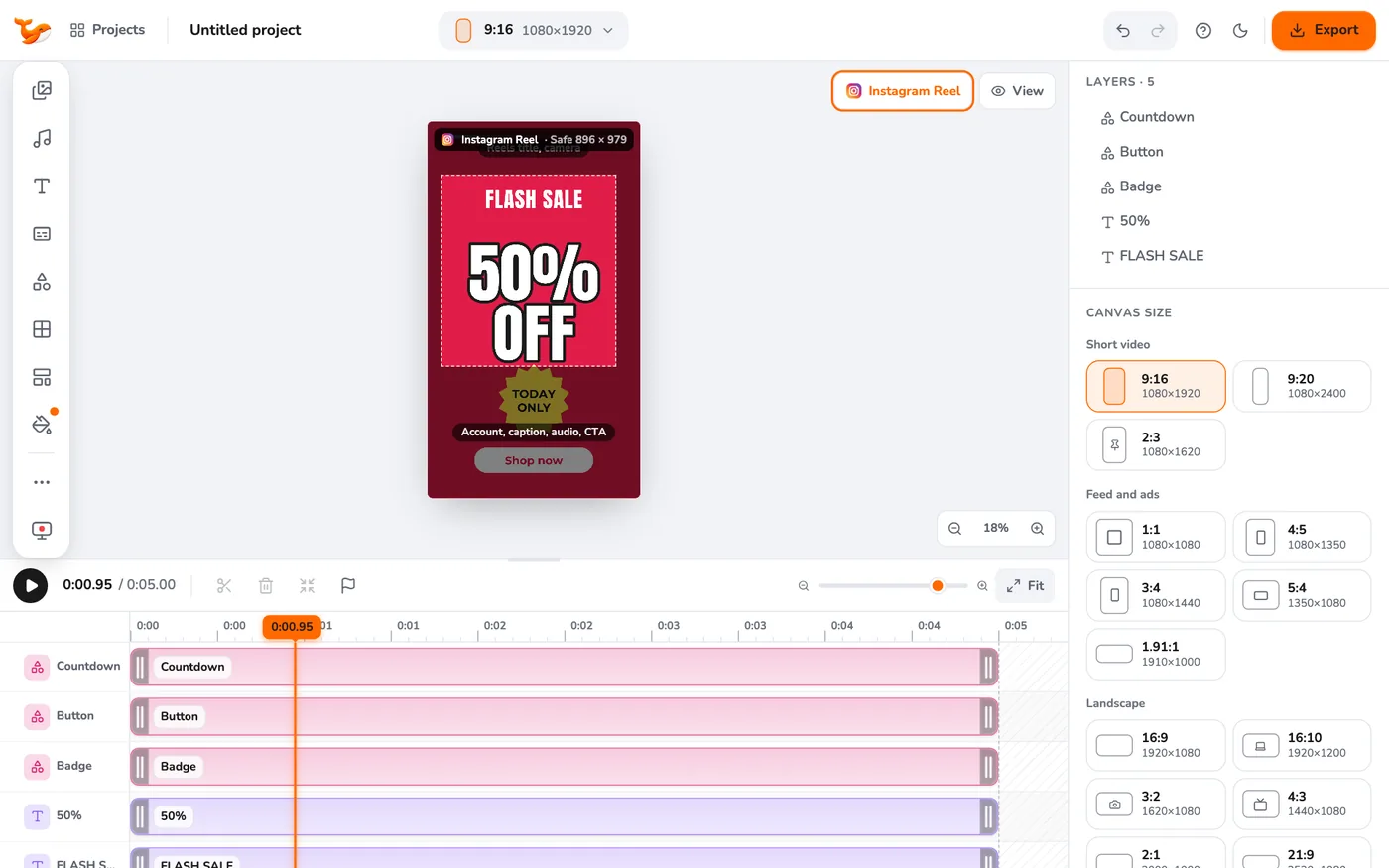
4Remember the guides are never exported
The guides are for editing only. They do not appear in your exported file.
Tips
- Meta publishes the Reels and Stories ad zone as roughly the top 14%, bottom 35% and sides 6%. TikTok does not publish exact numbers, so its guide is an estimate. Always check the final video in the platform preview.
- On a 1:1 or 4:5 canvas the menu shows the Instagram profile grid crop and a text margin instead.
Frequently asked questions
Why does the menu not list TikTok on my square canvas?
Those guides are made for 9:16 video. Switch the canvas to 9:16 and they appear.
Are the zones exact?
Meta and the YouTube Shorts ad template come from published guidance. TikTok, the Instagram app UI and the YouTube player are estimates.
Video Editor runs in your browser. No account, no uploads.
Open the editor