 Video EditorOpen the editor
Trim, split and move clips on the timeline
The timeline shows every layer as a clip. Master a few moves and you can cut a video in minutes.
1Read the timeline
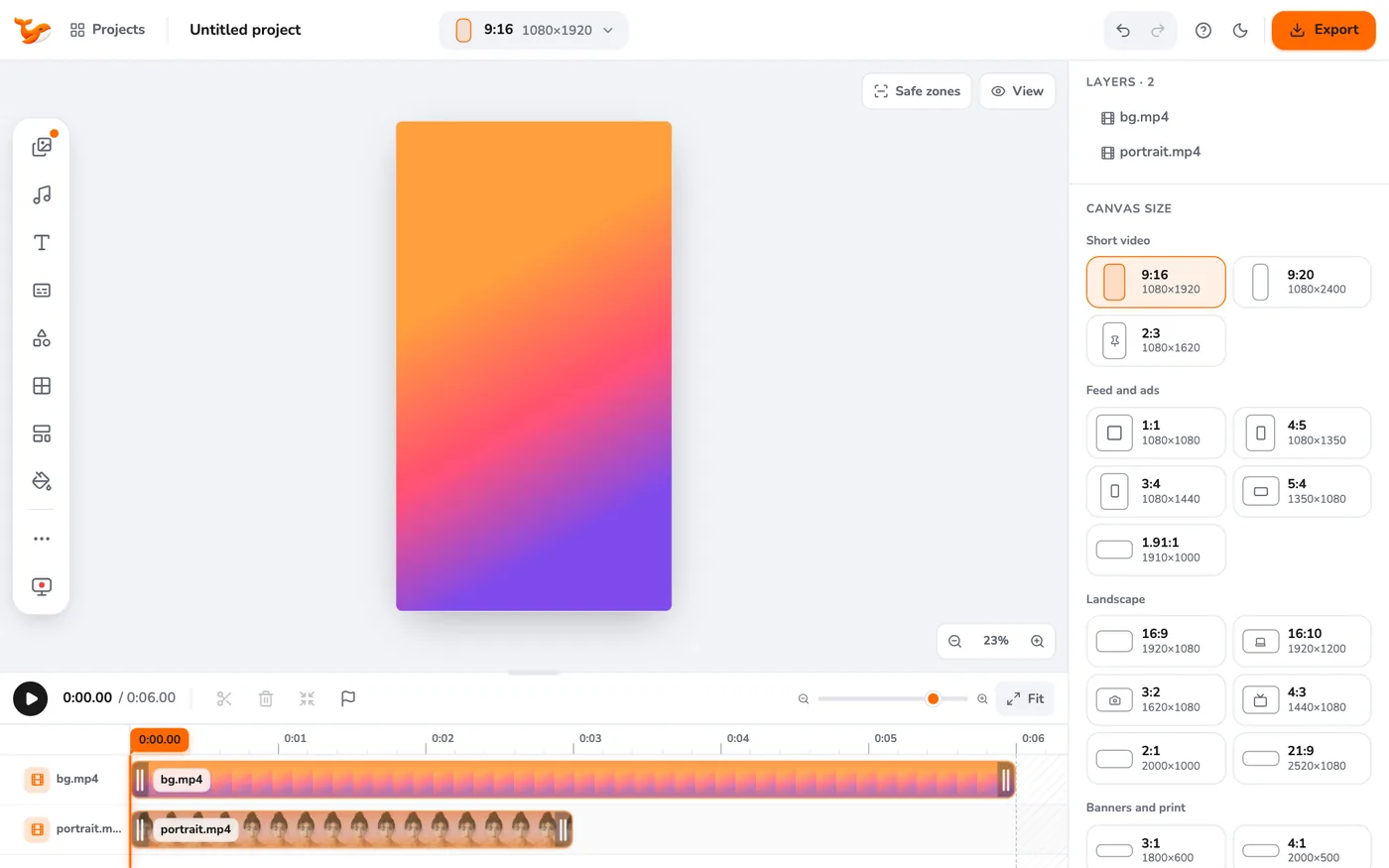
Each row is one layer. Video and image clips show thumbnails, audio shows a waveform, and text and shapes use a colour per type. The orange line is the playhead, and its time is shown on the ruler. Click or drag the ruler to scrub.
2Trim
Select a clip and drag the handle at either end. The handles turn orange when the clip is selected. Trimming a video hides part of it without deleting it, so you can drag the handle back out.
3Split
Move the playhead to the cut point and press S or click the scissors. The clip becomes two clips that you can move or delete separately.
4Move and layer
Drag a clip left or right to change when it starts. Clips snap to the playhead, markers and other clip edges. Drag a row by its label to change which layer is on top.
5Use the right-click menu
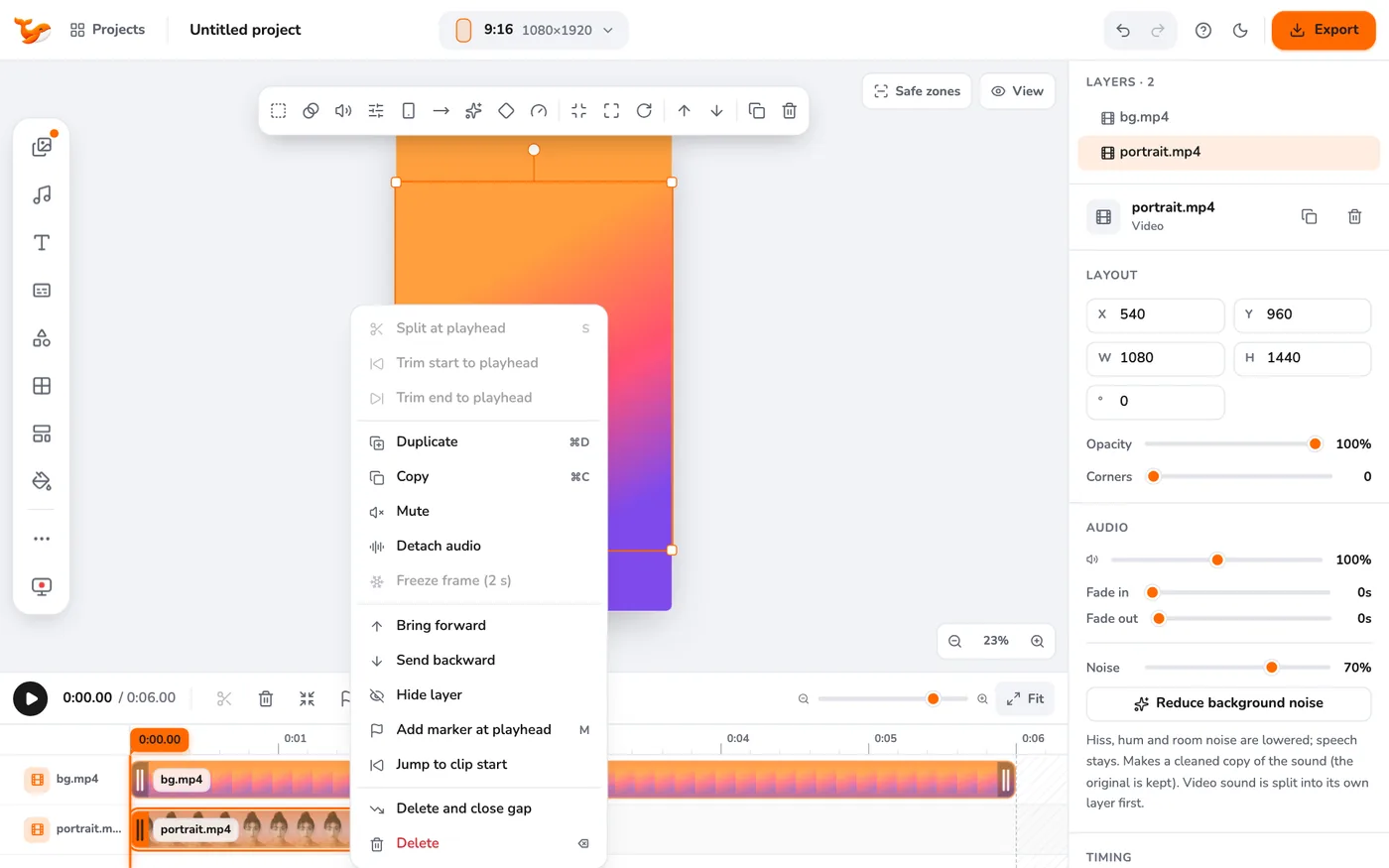
Right-click any clip for quick actions: split, trim start or end to the playhead, duplicate, mute, detach audio, freeze frame, loop to fit, change layer order, hide, add a marker, delete and delete while closing the gap.
6Fit the timeline
Press Fit (or Shift+Z) to zoom so the whole project, including the end, is visible. The timeline fits automatically until you change the zoom slider yourself.
Tips
- Delete and close the gap (the shrink icon, or Shift+Backspace) removes a clip and pulls later clips left.
- Press M to drop a marker at the playhead. Clips snap to markers.
Frequently asked questions
How do I undo?
Press Ctrl/Cmd+Z. Redo is Shift+Ctrl/Cmd+Z.
Can I cut out the middle of a video?
Split before and after the part, select the middle clip and use Delete and close the gap.
Video Editor runs in your browser. No account, no uploads.
Open the editor