 Video EditorOpen the editor
Edit a video by editing its transcript
Editing speech on a timeline is slow. With transcript editing you delete words from text and the video is cut to match, like editing a document.
1Open Edit by transcript
Open More tools at the bottom of the left toolbar and choose Edit by transcript. Pick the video or audio layer and its language.
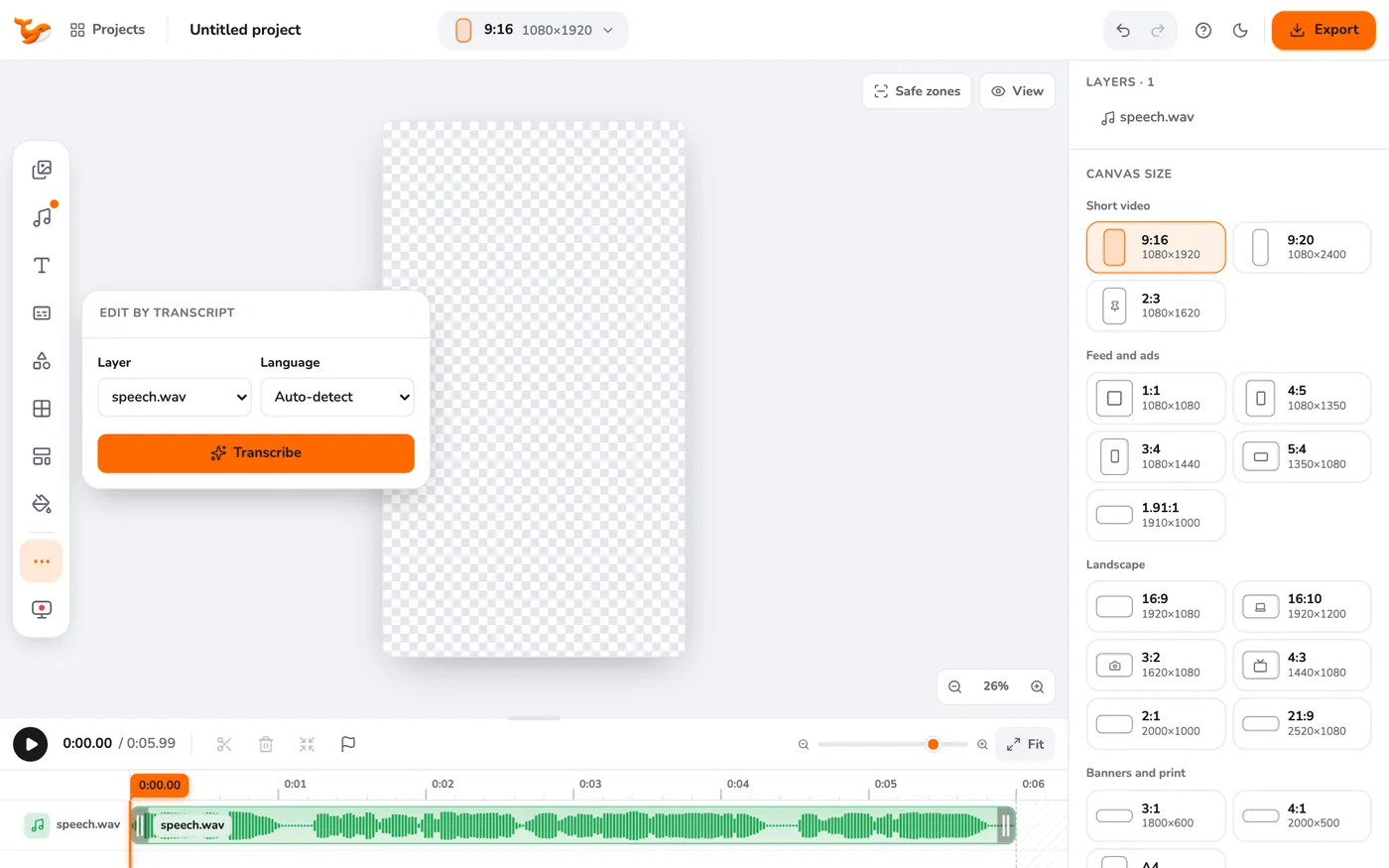
2Transcribe
Press Transcribe. The words appear as text, each tied to its time in the clip.
3Select and delete words
Click a word, or click and drag across several, then press Delete selected words. The matching parts of the video are cut out and the gap is closed.
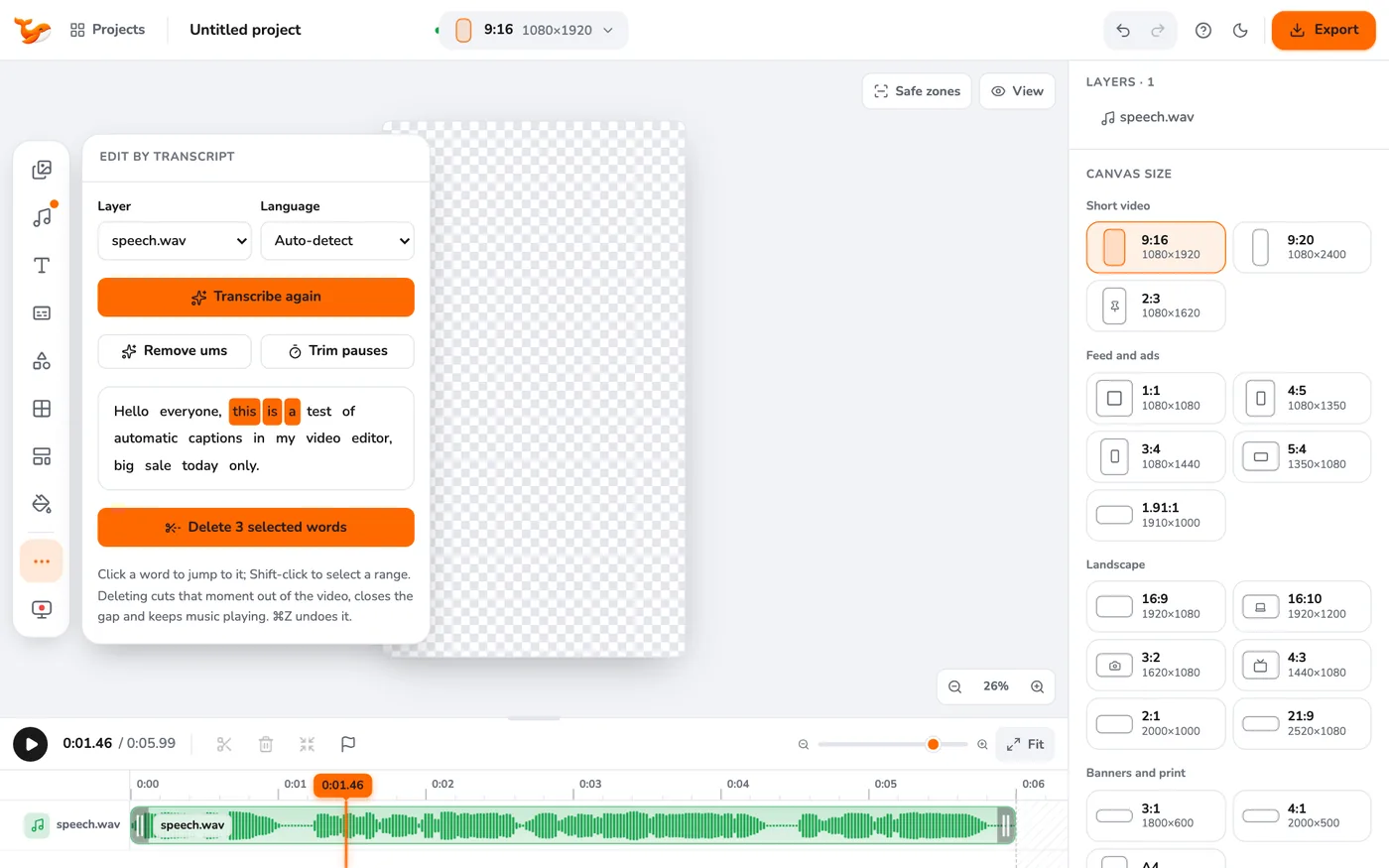
4Remove filler words
Press Remove ums to cut filler words such as um and uh automatically. Check the result by playing it back.
Tips
- Press undo if a cut is not what you wanted. Transcript edits are normal edits and can be undone.
- Speech models can miss very short fillers. Select any that remain and delete them by hand.
Frequently asked questions
Does this change my original file?
No. The cuts are made on the timeline. Your uploaded file is untouched.
Does it work for audio only?
Yes. Choose an audio layer as the source.
Video Editor runs in your browser. No account, no uploads.
Open the editor