 Video EditorOpen the editor
Sync your cuts to the beat of the music
Cuts that land on the beat make a montage feel professional. Beat sync listens to your music, finds the tempo and cuts your clips to it.
1Add your pictures, clips and music
Put the images or video clips you want to cut on the canvas, and add a music track in Audio.
2Open Beat sync
Open More tools in the left toolbar and choose Beat sync. Pick the music layer.
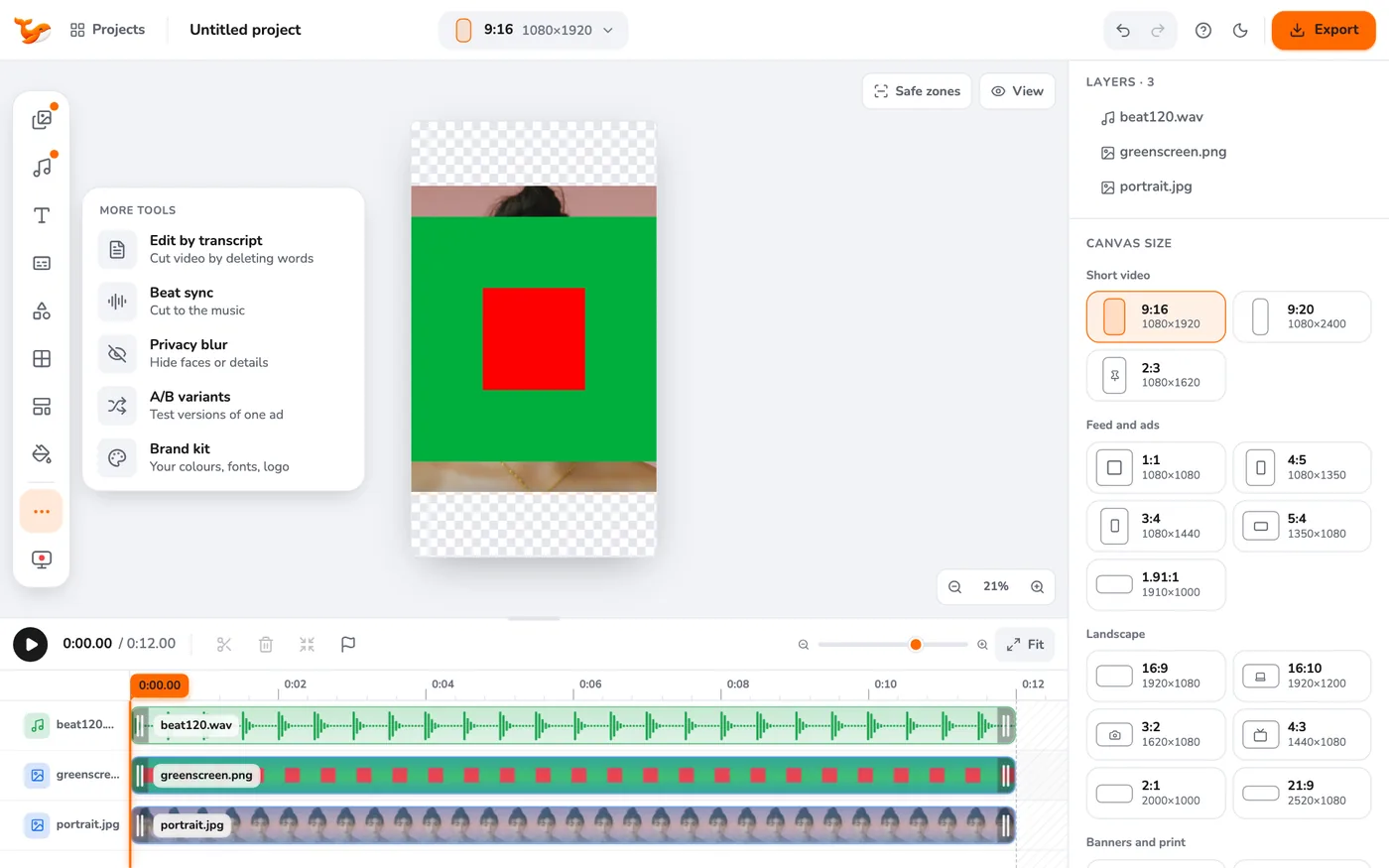
3Find the beat
Press Find the beat. The app shows the tempo in BPM and where the beats fall.
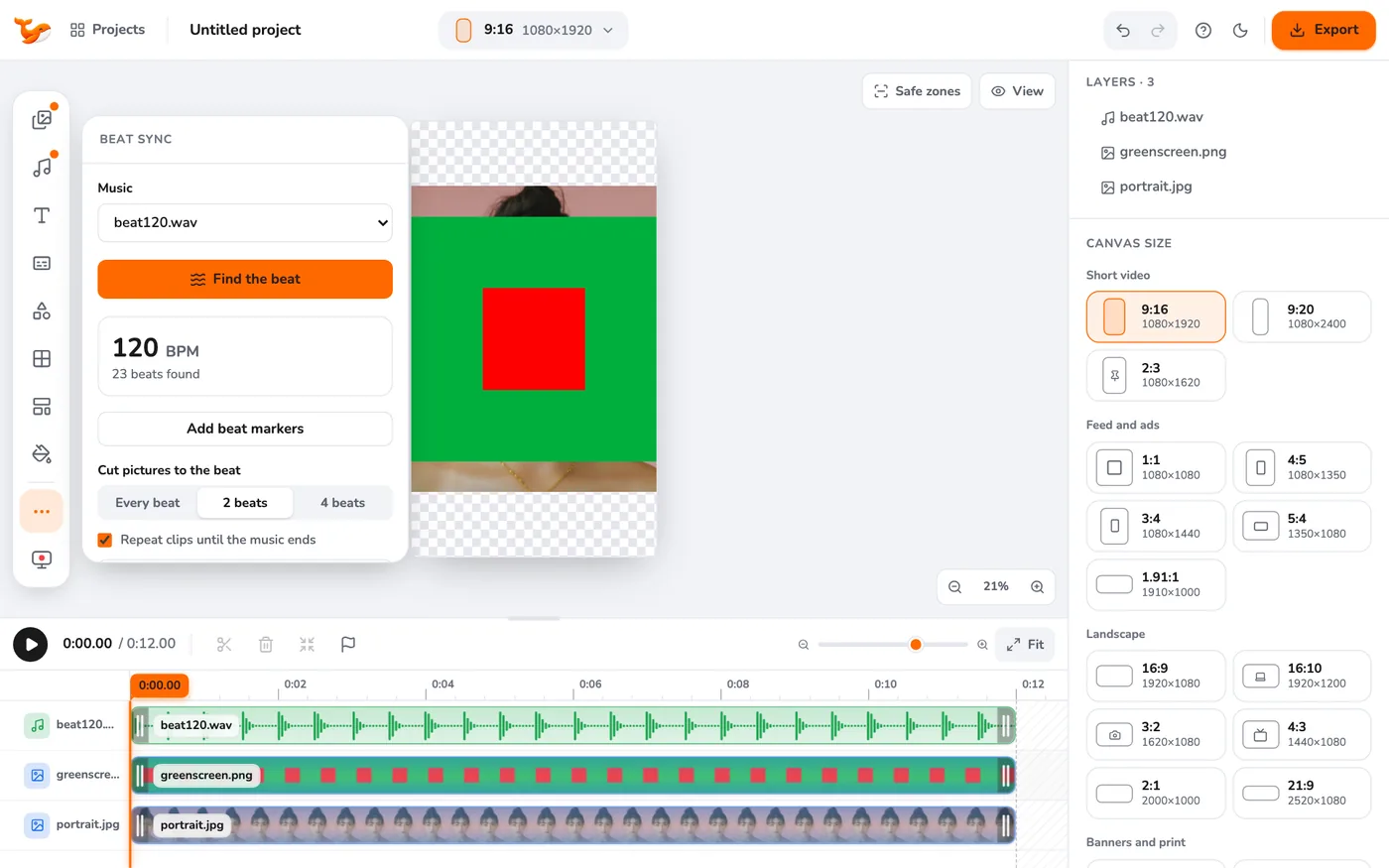
4Cut or mark
Press Cut pictures to the beat to cut your clips on the beats, or Add beat markers to place markers on the timeline and cut by hand. Clips snap to markers.
Tips
- Music with a steady, clear rhythm gives the best result.
- Use every second beat for a calmer pace by cutting a few clips manually.
Frequently asked questions
Does it upload my music?
No. Beat detection runs on your device.
Try it yourself
Video Editor runs in your browser. No account, no uploads.
Open the editorRelated guides
AudioAdd background music and control volumeAdd music to a video, set the volume of each clip, boost above 100%, fade in and out and loop a track to fit.EditingTrim, split and move clips on the timelineLearn the timeline: trim clip ends, split at the playhead, move and layer clips, delete and close gaps, zoom and fit the timeline.EditingMake a photo or video collage with layoutsCombine several photos and videos in one frame using grid, split and slanted collage layouts. Fill cells with Upload or Library buttons.