 Video EditorOpen the editor
Make a photo or video collage with layouts
Collages let you show several clips at once: before and after, a product from many angles, or a split-screen reaction. Pick a layout and fill the cells.
1Pick a layout
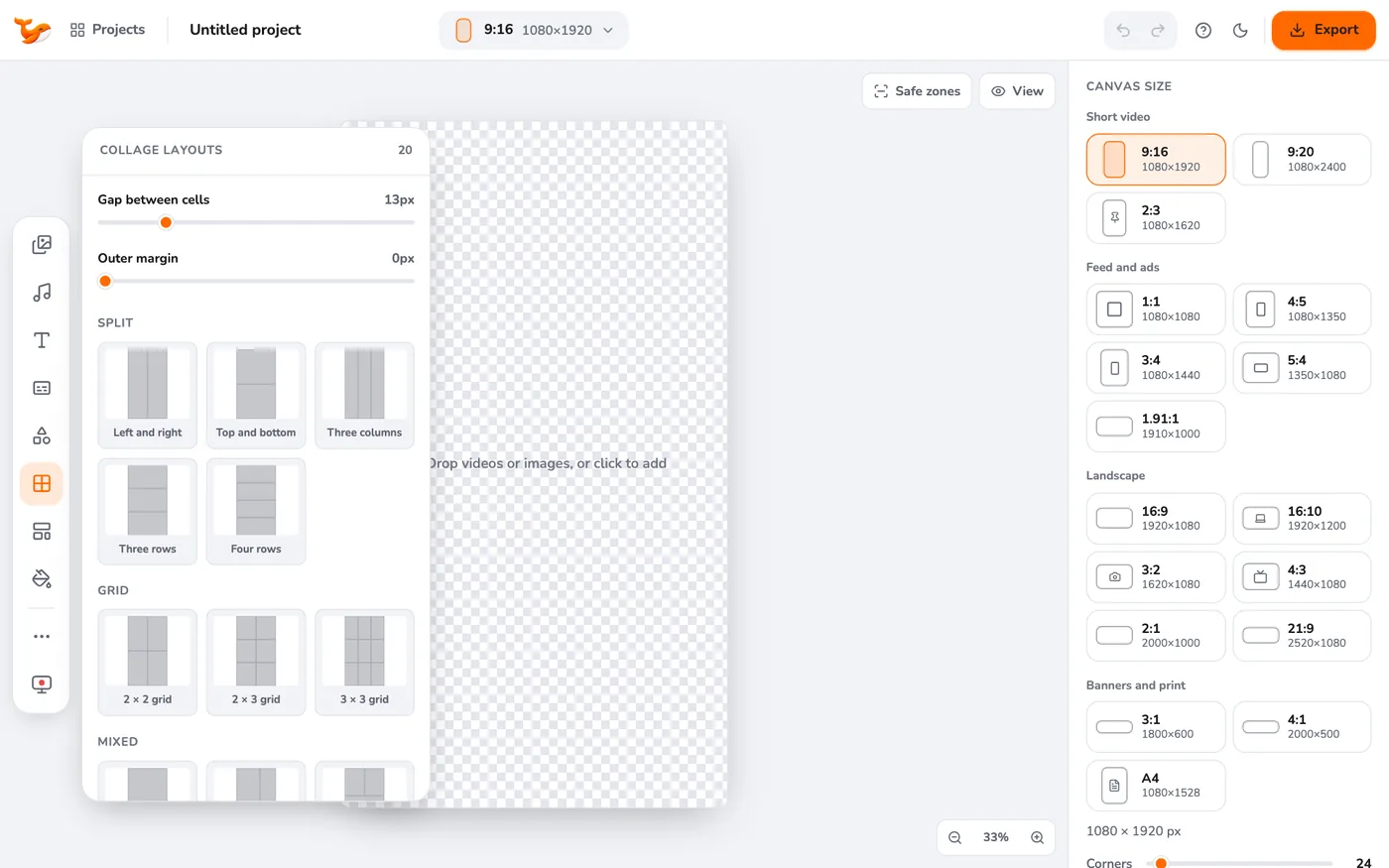
Open Collage layouts in the left toolbar. Choose a split, a grid, a mixed layout or a slanted one. Two sliders set the gap between cells and the outer margin.
2Fill the cells
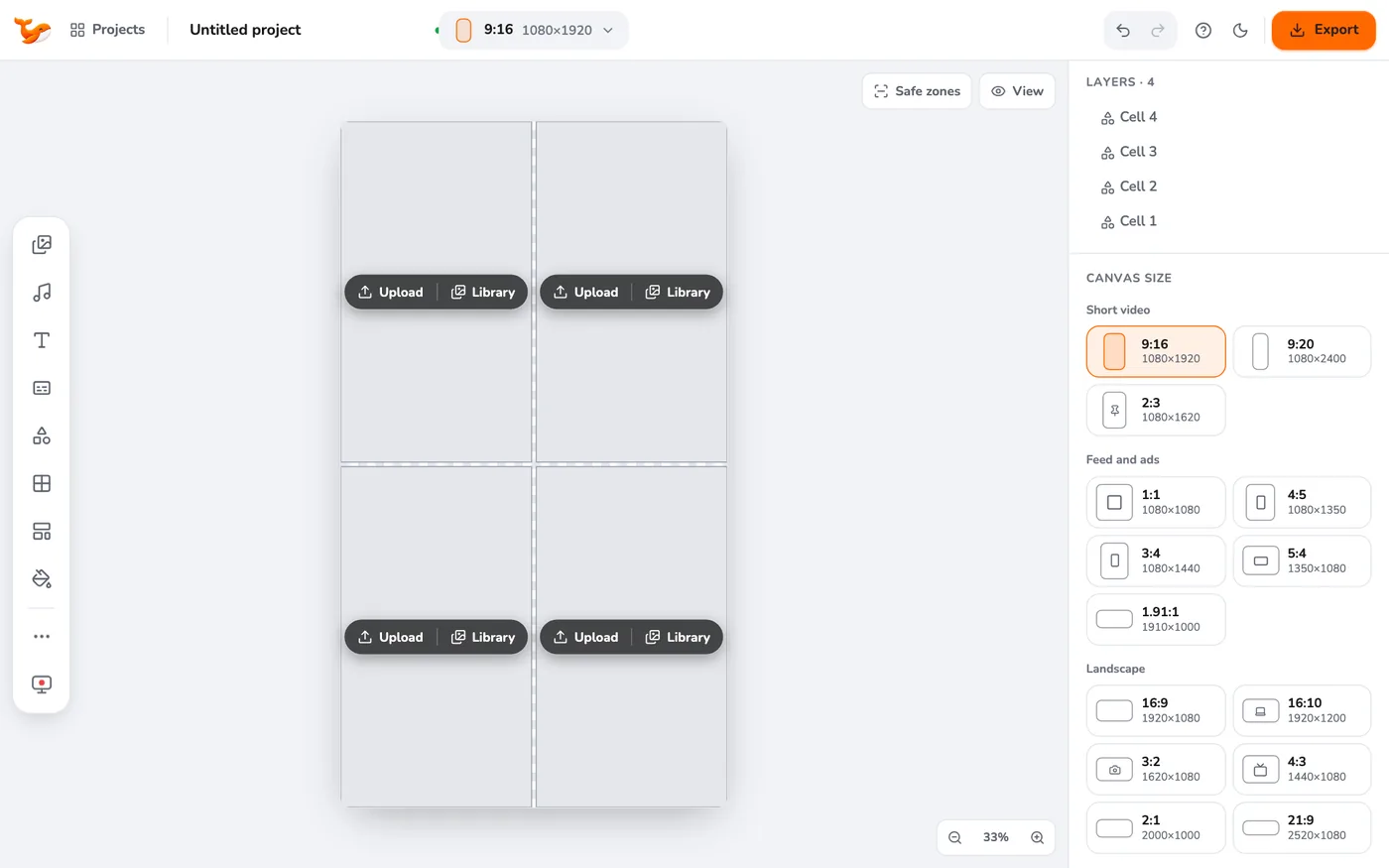
Empty cells show Upload and Library buttons. Upload adds a new file straight into that cell. Library lets you pick something you already imported.
3Replace or adjust
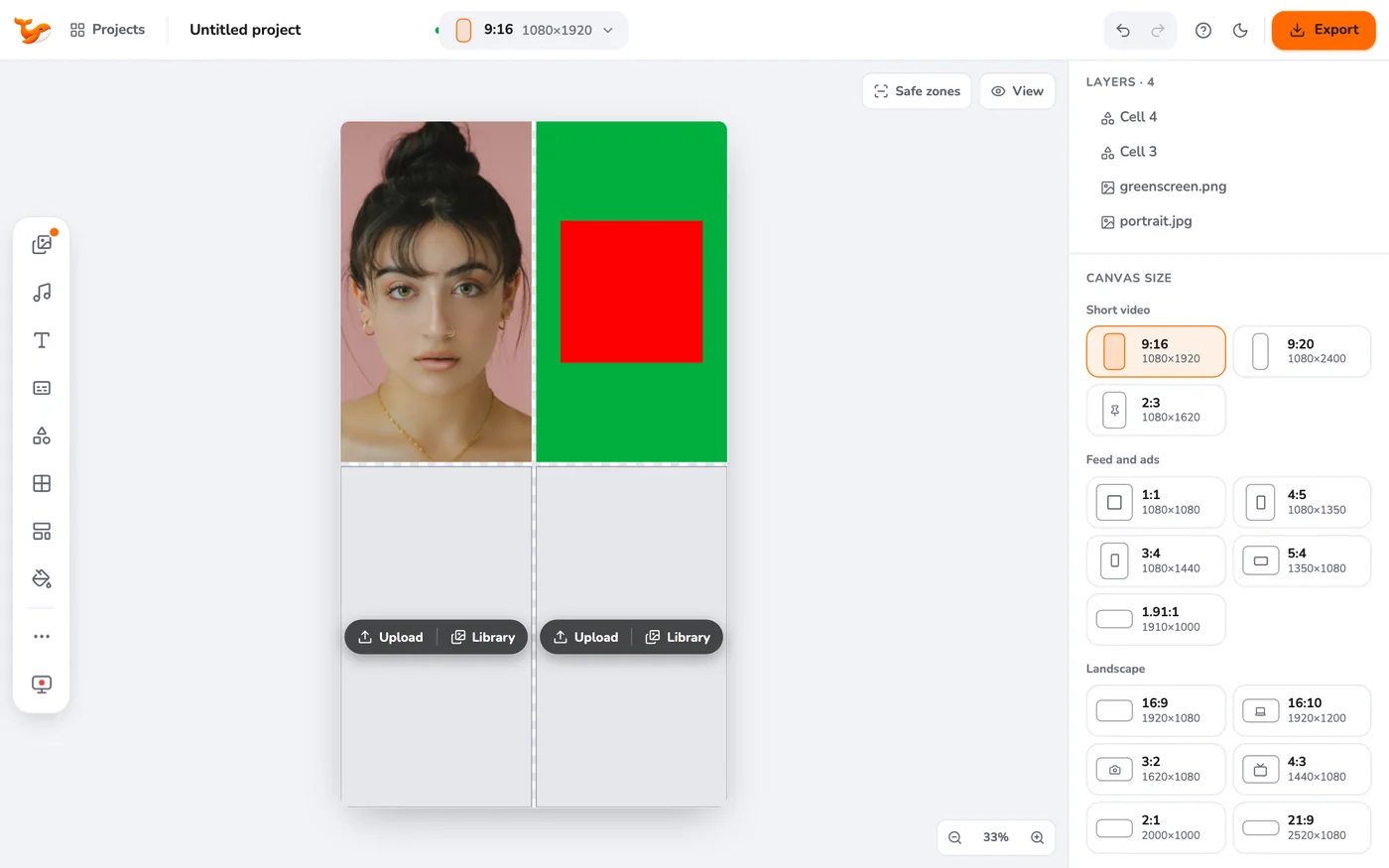
Hover a filled cell and use Replace to swap its media. Select the media to resize or move it inside the cell. Use Fill the cell in its toolbar to re-crop it, or release it to free it from the layout.
4Existing media fills cells automatically
If you already have media on the canvas when you pick a layout, it is placed into the cells in layer order.
Tips
- Videos in different cells play together on the timeline. Mute the ones you do not want to hear.
- Set the outer margin to 0 for a full-bleed collage.
Frequently asked questions
Can I drop files onto a cell?
Yes. Dragging a file or a library item onto an empty cell fills that cell.
Video Editor runs in your browser. No account, no uploads.
Open the editor