 Video EditorOpen the editor
Remove the background from a video or image
Cutting out a subject lets you place it on a new background. Video Editor has an on-device cut-out for people and a colour-key tool for green screens.
In this guide
1Select the image or video
Click the layer on the canvas to select it. Its toolbar appears above it.
2Open Filters
Open Filters in the toolbar and find Remove background.
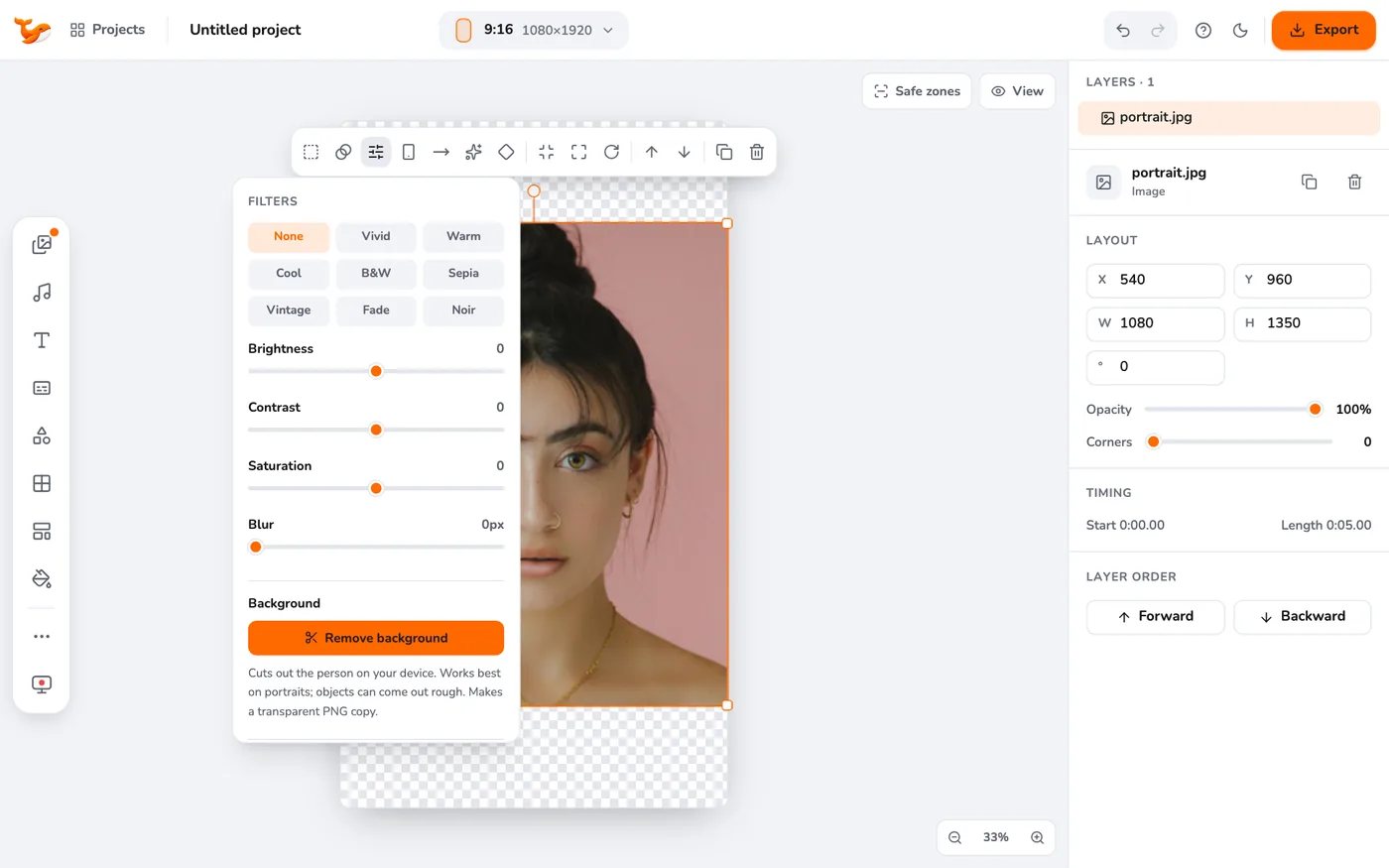
3Run the cut-out
Press Remove background. Images are done in a moment. Videos are processed in the background and take longer, roughly 10 seconds for each second of video on a typical laptop, and you can keep working.
4Add a new background
Choose a gradient, wallpaper or image background from Background. Use Restore background to bring the original back.
5For a green screen, use colour removal
In the same Filters menu, use Colour to remove with the Tolerance and Edge softness sliders for green or blue screens.
Tips
- The cut-out works best on people with good lighting and a clear edge.
- Exports include the cut-out, so you can place the subject on any background.
Frequently asked questions
Is my video uploaded to cut out the background?
No. The model is bundled and runs on your device.
Video Editor runs in your browser. No account, no uploads.
Open the editor