 Video EditorOpen the editor
Backgrounds: colours, gradients and macOS-style wallpapers
A nice background makes screen recordings and product shots look designed. The background sits behind every layer.
1Open Background
Click Background in the left toolbar. A dot shows when a background is set.
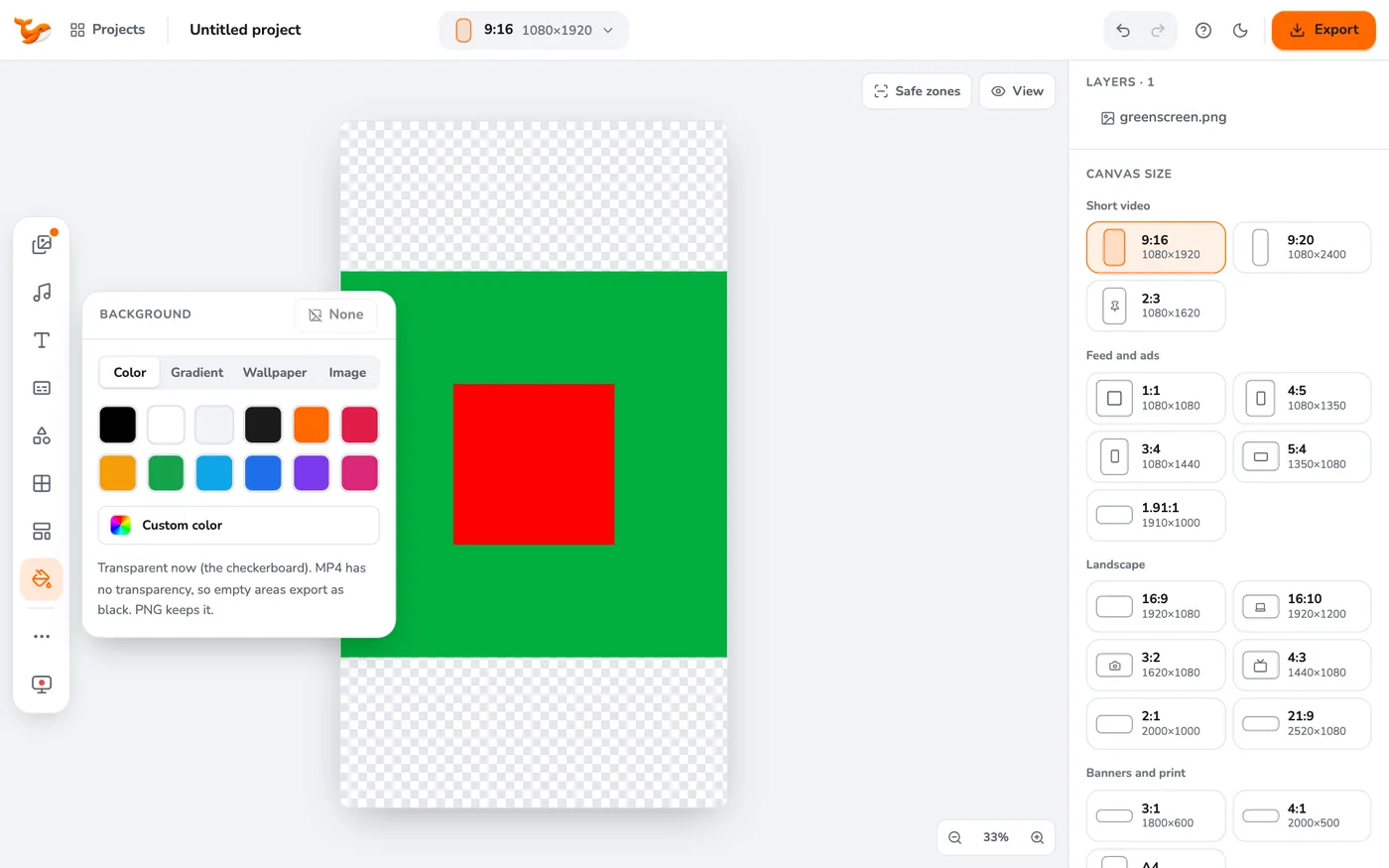
2Pick a type
Choose Colour for a flat colour, Gradient for a two-colour blend, Wallpaper for one of 20 soft mesh backgrounds in the style of modern Mac and screen-recording apps, or Image for your own picture.
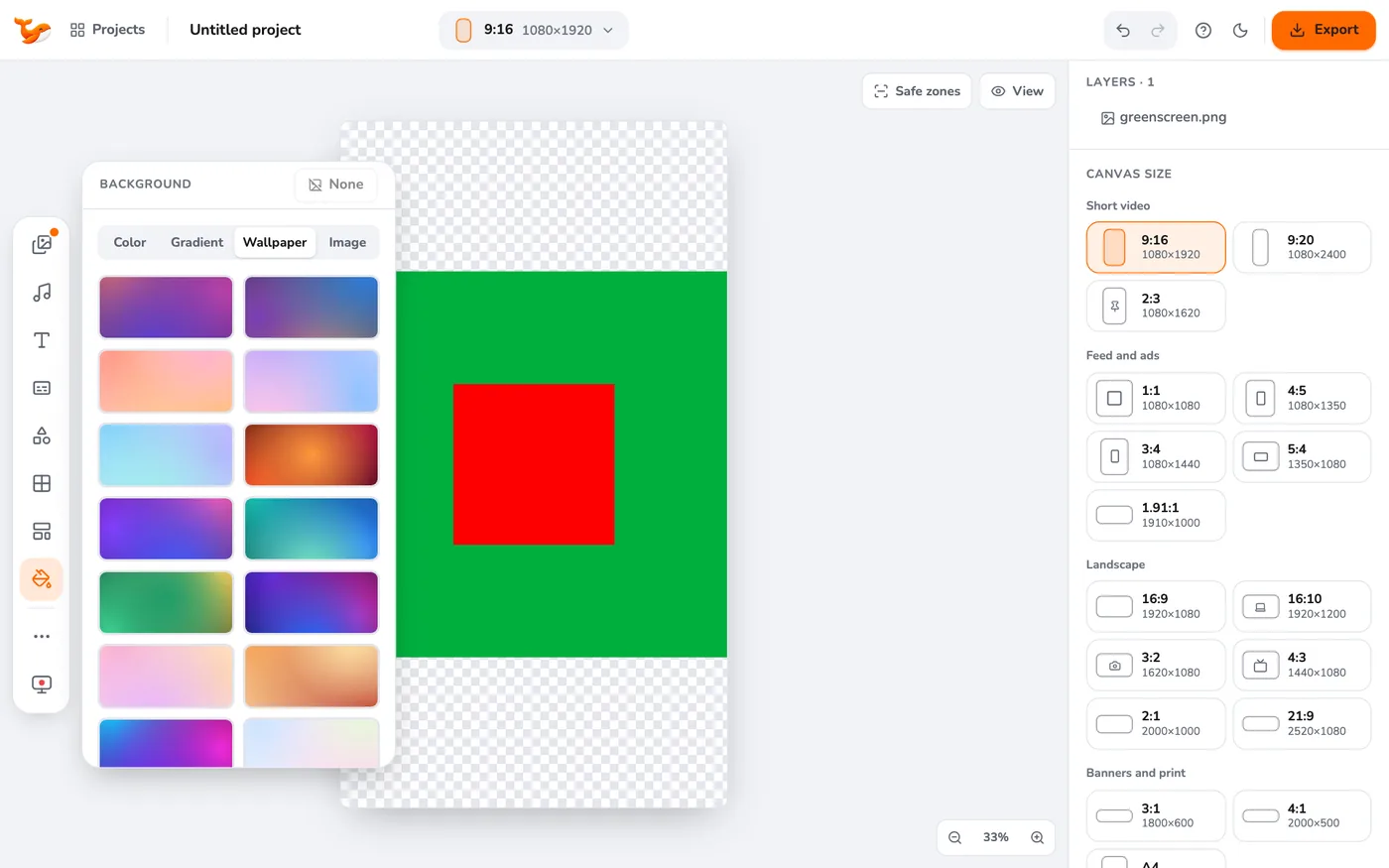
3Make the video float
Shrink your video layer a little, add rounded corners and a shadow-friendly margin, and it looks like a window floating on the wallpaper.
4Transparent canvas
Choose transparent to export PNGs with no background. In MP4, transparent areas become black.
Tips
- Match the wallpaper to your brand colours for a consistent look.
- Combine with background removal to put a person on a new scene.
Frequently asked questions
Can I use my own image?
Yes, use the Image tab and upload a picture or choose one from your media.
Video Editor runs in your browser. No account, no uploads.
Open the editor