 Video EditorOpen the editor
Add videos and images and arrange them on the canvas
Your canvas is the stage of your video. Here is how to bring files in and place them exactly where you want.
1Upload your files
Open Media in the left toolbar and press Upload, or just drag files into the window. Videos, images and audio are all accepted. Files stay in your browser.
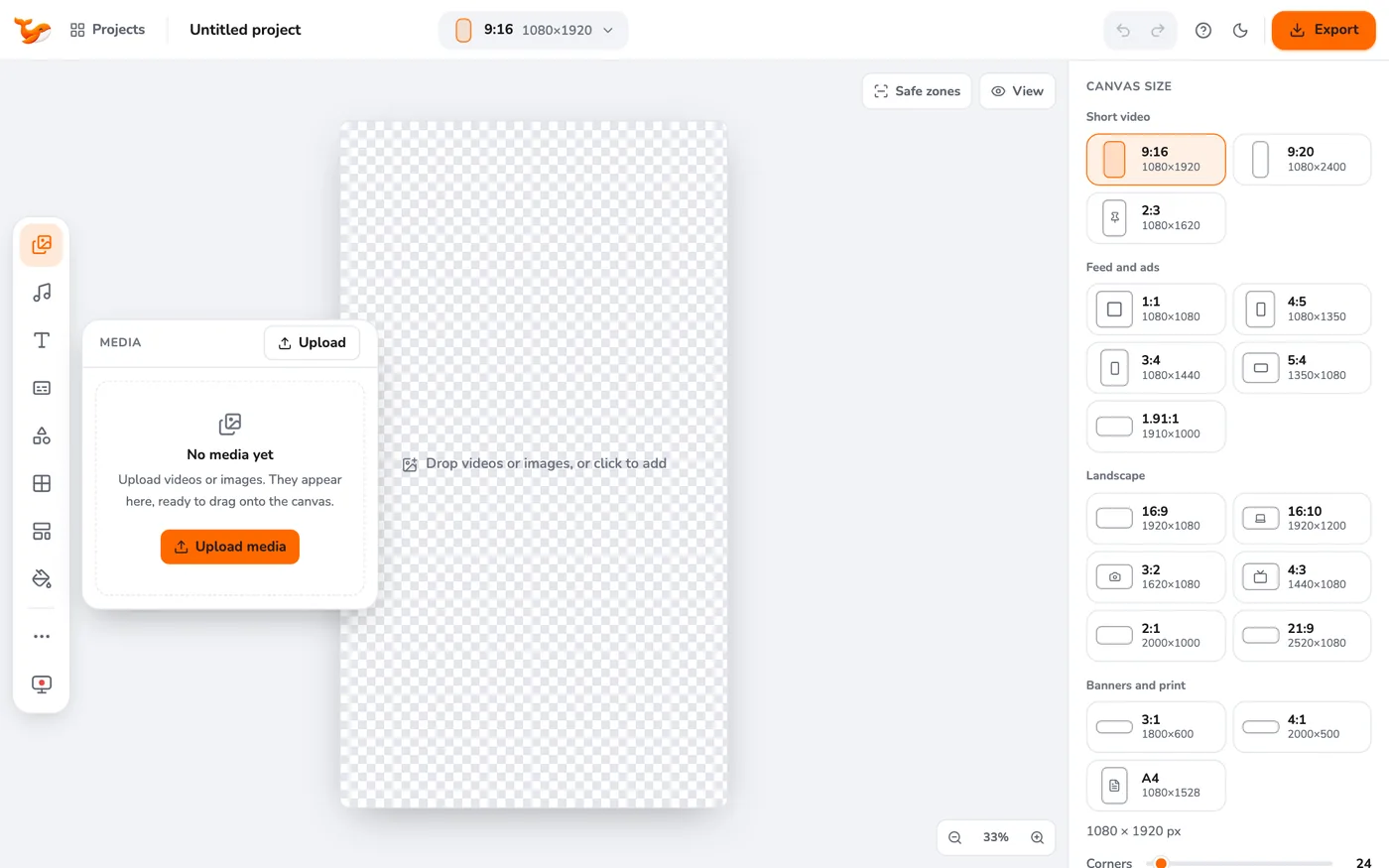
2Put them on the canvas
Click a file in the library to add it as a layer. Videos start where the playhead is and are placed on the timeline automatically.
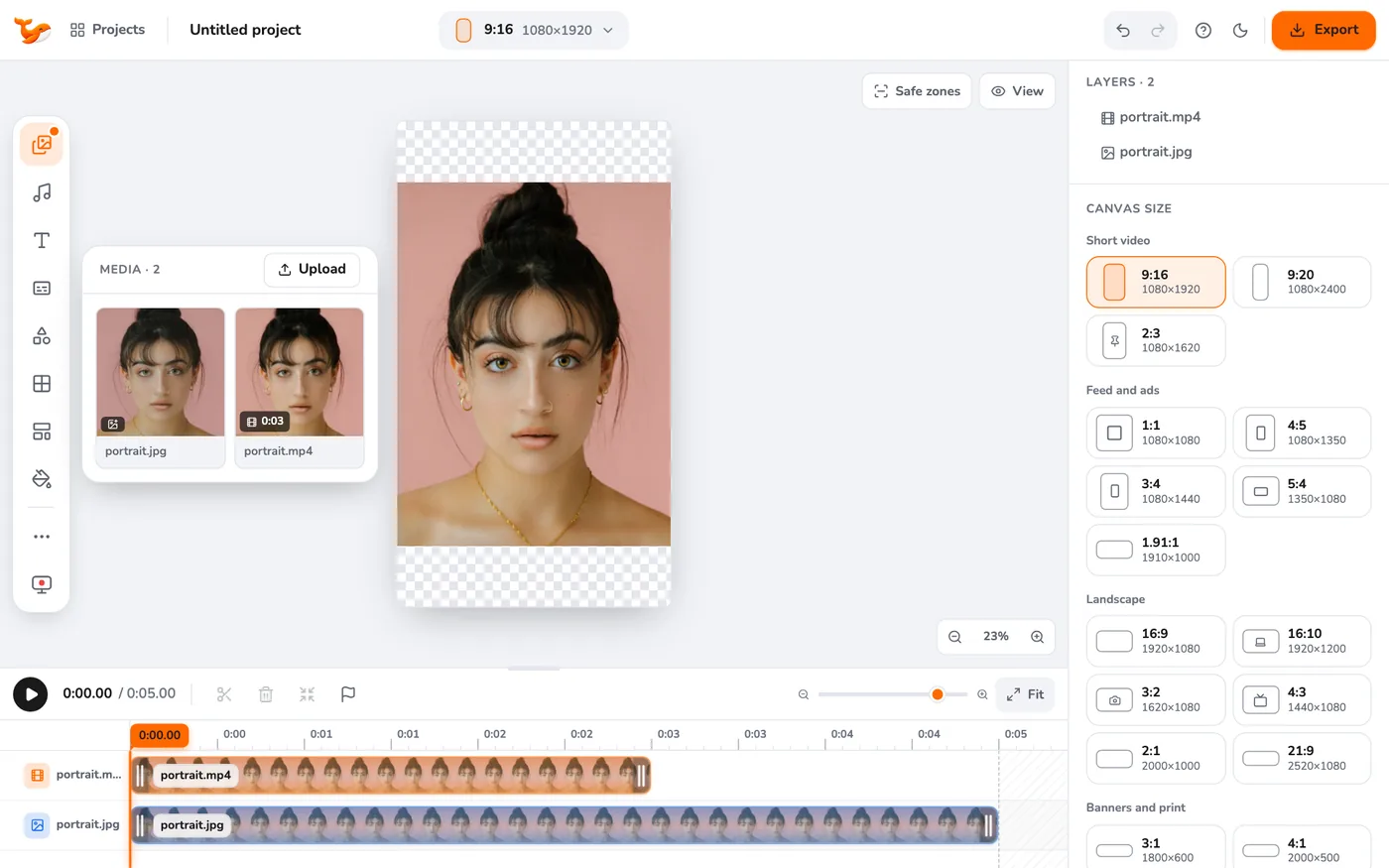
3Move, resize and rotate
Drag a layer to move it. Drag a corner handle to resize, and the circle above it to rotate. Guide lines snap to the centre and to other layers. For exact values use the Layout section on the right (X, Y, W, H and rotation).
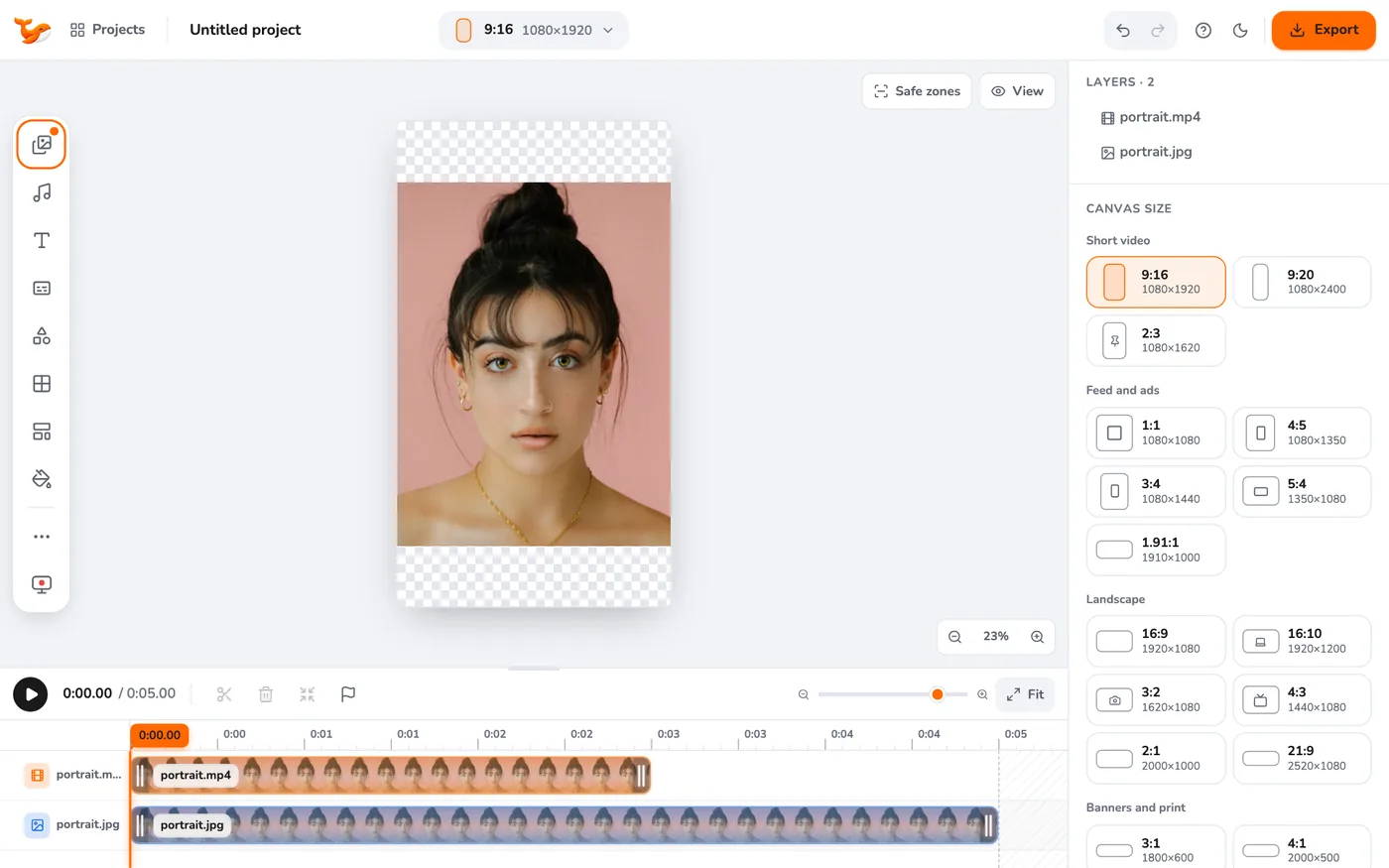
4Use the layer toolbar
The floating toolbar offers Fit and Fill for the canvas, rotate 90°, corner radius, opacity, filters, speed and keyframes, plus layer order, duplicate and delete.
Tips
- Hold Shift and click to select several layers and move them together.
- Hold Space and drag, or use the middle mouse button, to pan the view. Use the zoom controls at the bottom right to zoom.
Frequently asked questions
Can I use GIFs or audio?
Images (including GIF as a still), videos and audio files are supported.
Why does a video not load?
Chrome must be able to play the codec. Most MP4 (H.264), WebM and MOV files work; some HEVC files do not on every computer.
Video Editor runs in your browser. No account, no uploads.
Open the editor