 Video EditorOpen the editor
Reduce background noise in your audio
Noisy recordings sound unprofessional and hurt captions. Noise reduction lowers constant noise like hiss, fans and room tone while keeping speech.
1Select the clip
Click an audio clip on the timeline, or a video clip with sound.
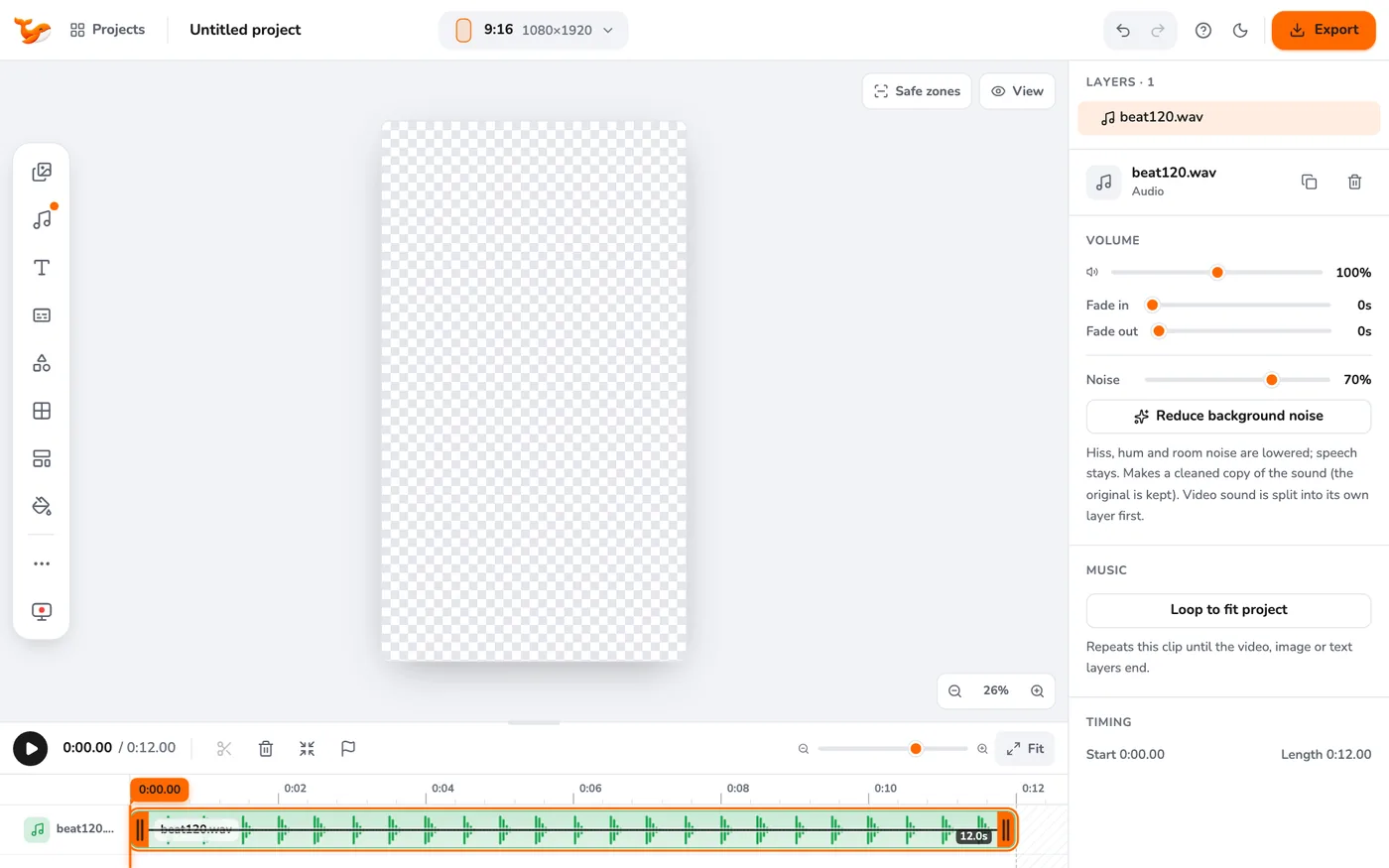
2Set the amount
In the right panel under Audio, drag the Noise slider. 70% is a good start. Higher values remove more but can sound thin.
3Press Reduce background noise
The app makes a cleaned copy of the sound and keeps the original. For a video, its sound is first split into its own layer.
4Listen and compare
Play the result. If it sounds too processed, undo and try a lower amount.
Tips
- This works best on steady noise (fans, hiss, hum). It cannot remove other people talking.
- Clean the audio before generating captions for better accuracy.
Frequently asked questions
Does it upload my audio?
No. It runs on your device.
Try it yourself
Video Editor runs in your browser. No account, no uploads.
Open the editorRelated guides
AudioAdd background music and control volumeAdd music to a video, set the volume of each clip, boost above 100%, fade in and out and loop a track to fit.CaptionsAdd automatic captions to a video (on your device)Generate captions from speech without uploading anything. Choose a style, fix words and export captioned videos for Reels, TikTok and Shorts.CaptionsEdit a video by editing its transcriptCut a talking video by deleting words from its transcript and remove filler words like um in one click. Runs on your device.