 Video EditorOpen the editor
Record your screen and camera inside the editor
Besides recording a tab from the toolbar, the editor has its own recorder for your whole screen, a window, or your camera, with microphone and a countdown.
In this guide
1Open the recorder
Click the red-dot Record button at the bottom of the left toolbar.
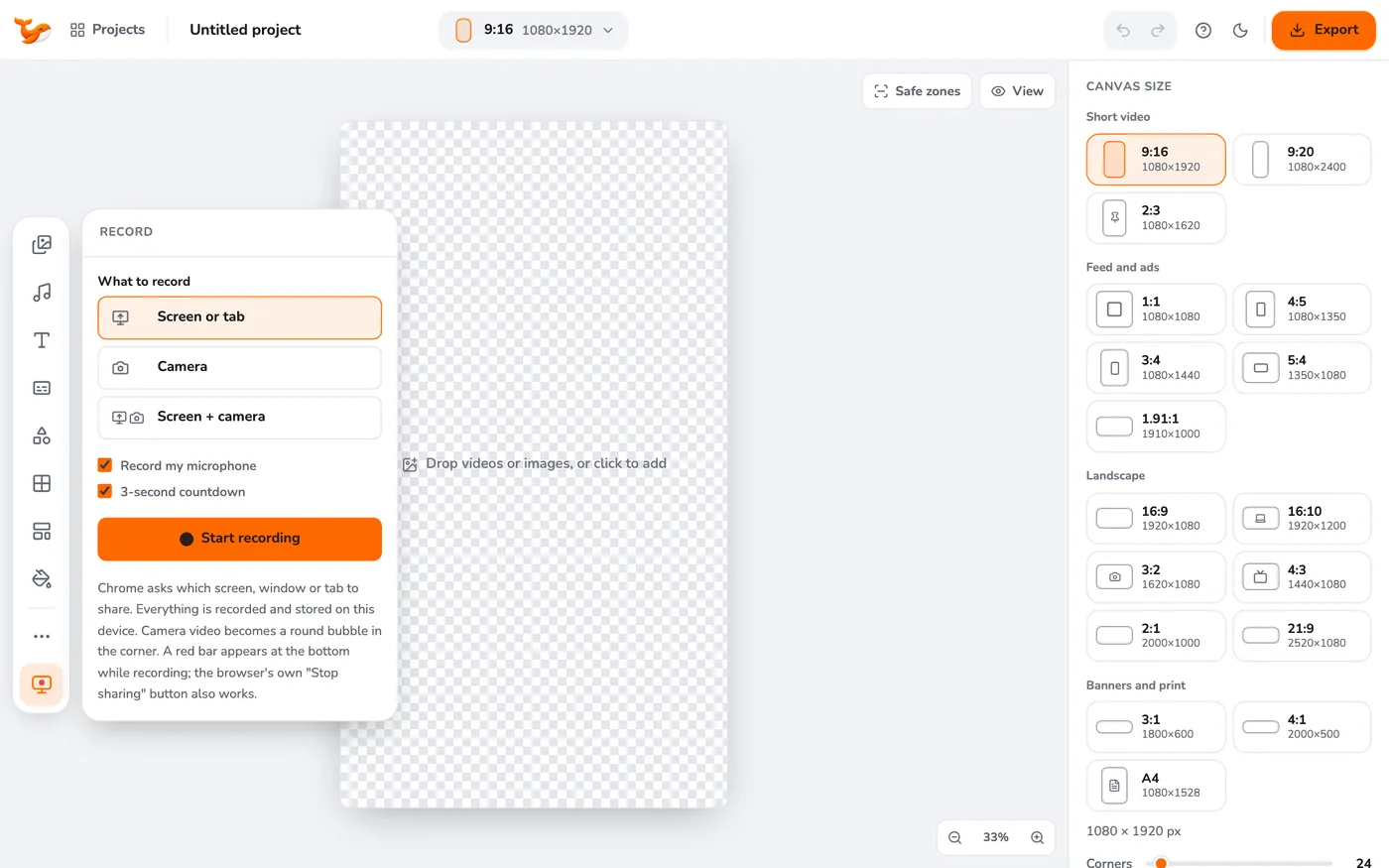
2Choose what to record
Pick Screen, Camera or Screen + camera. With the last one your camera appears as a round bubble in the corner of the screen recording.
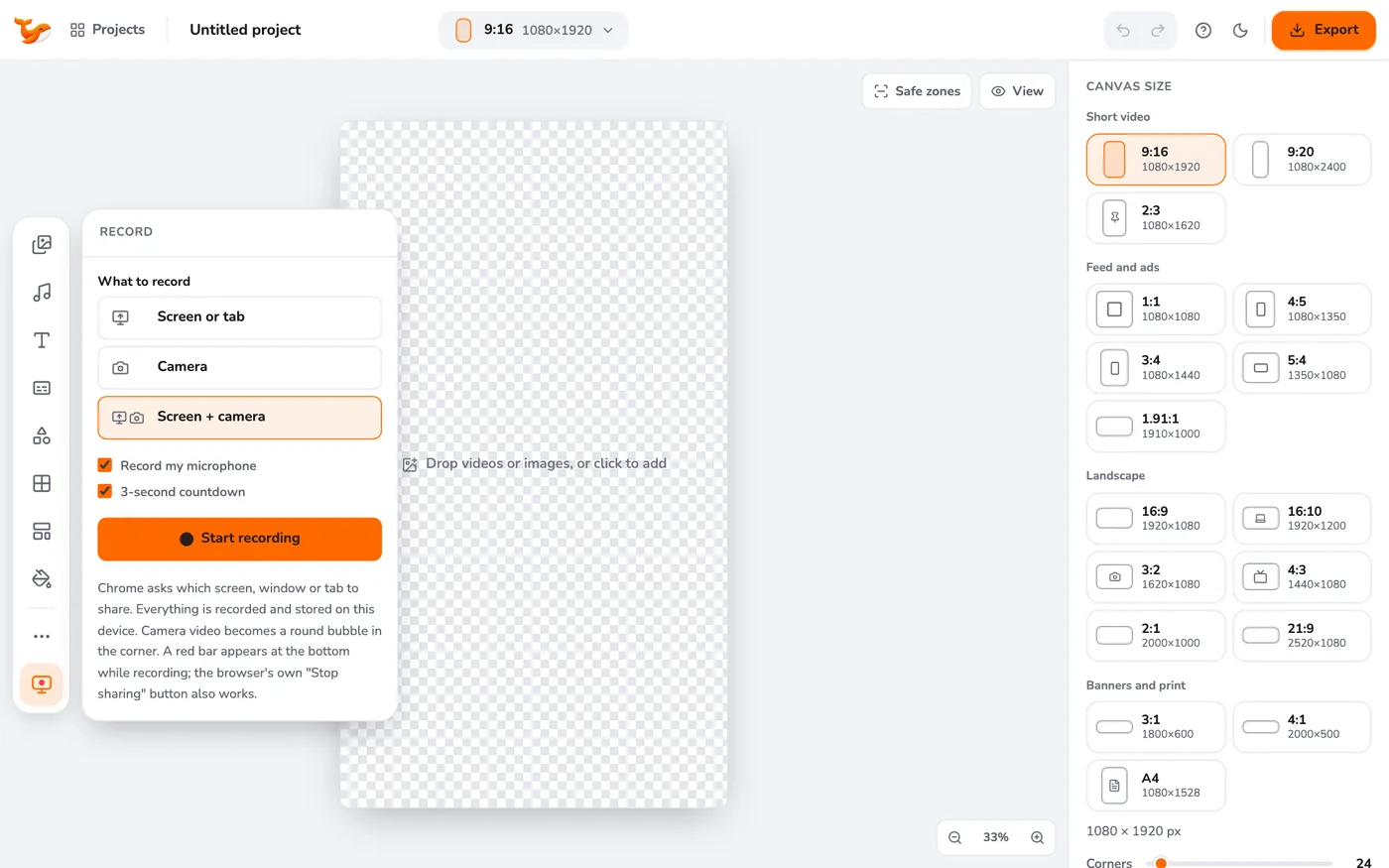
3Set microphone and countdown
Tick Record my microphone for your voice and choose a 3-second countdown if you want time to get ready.
4Press Start recording
Your browser asks what to share. Choose a screen, window or tab. A small bar lets you pause, resume or stop. When you stop, the recording is added to your project.
Tips
- If Chrome says no camera or microphone was found, plug one in or record the screen only.
- For tab recording with sound in one click use the toolbar popup.
Frequently asked questions
Where does the recording go?
It is added to your project on your device. Nothing is uploaded.
Video Editor runs in your browser. No account, no uploads.
Open the editor