 Video EditorOpen the editor
How to record a browser tab with sound
The Video Editor Chrome extension can record the tab you are on, including its sound, and open the recording straight in the editor. It works for demos, tutorials, product walkthroughs and clips of web video.
In this guide
1Install the extension
Add Video Editor from the Chrome Web Store and pin it to the toolbar (the puzzle icon, then the pin).
2Open the page you want to record
Go to the tab you want. If it plays audio, start it when you are ready. The recorder captures this tab only, not other tabs or your desktop.
3Click the toolbar icon and choose Record this tab
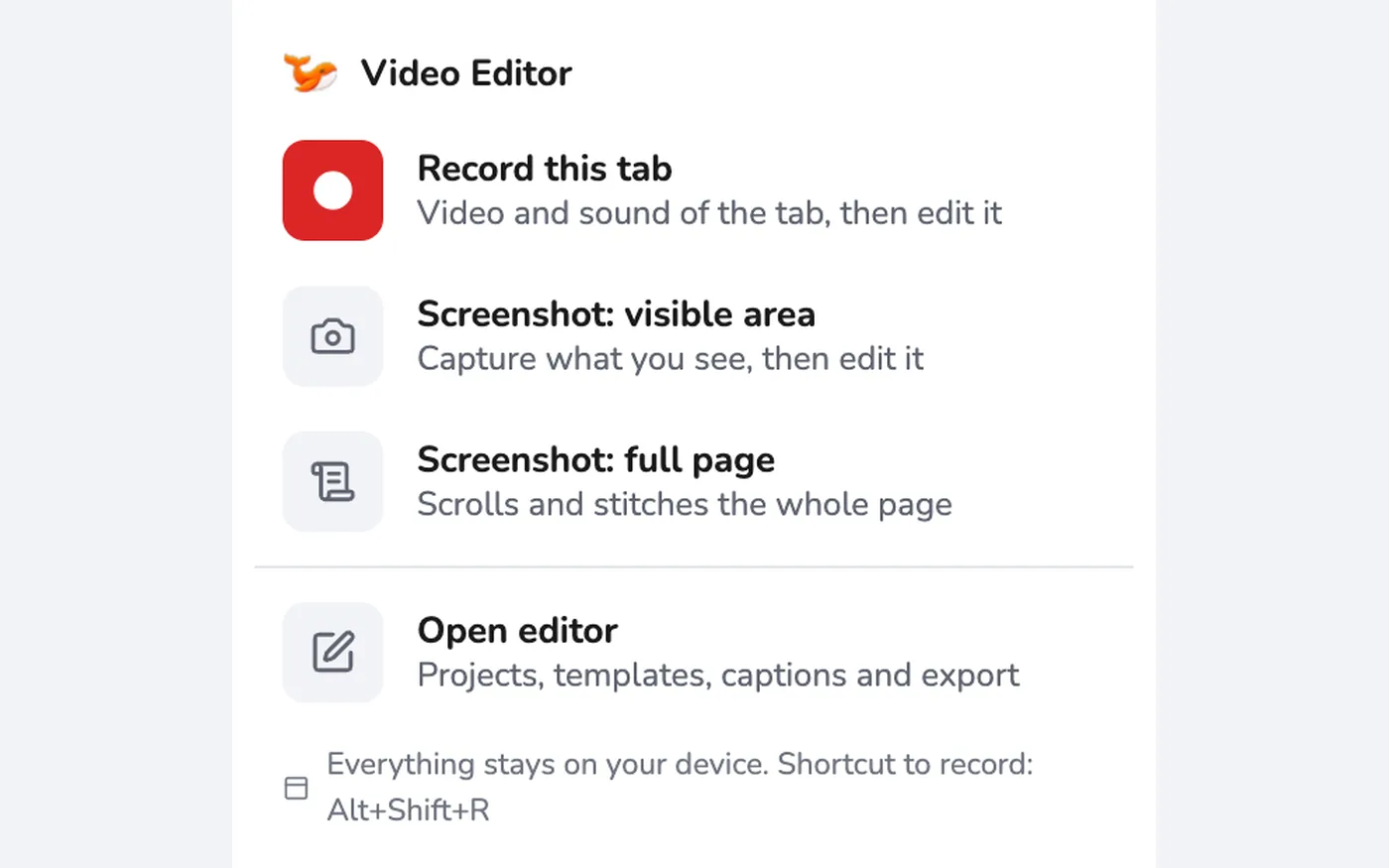
The popup lists Record this tab, two screenshot options and Open editor. Press the red button. The icon shows a red REC badge while recording. You can close the popup and keep working in the tab. You can also use the shortcut Alt+Shift+R to start and stop.
4Stop and edit
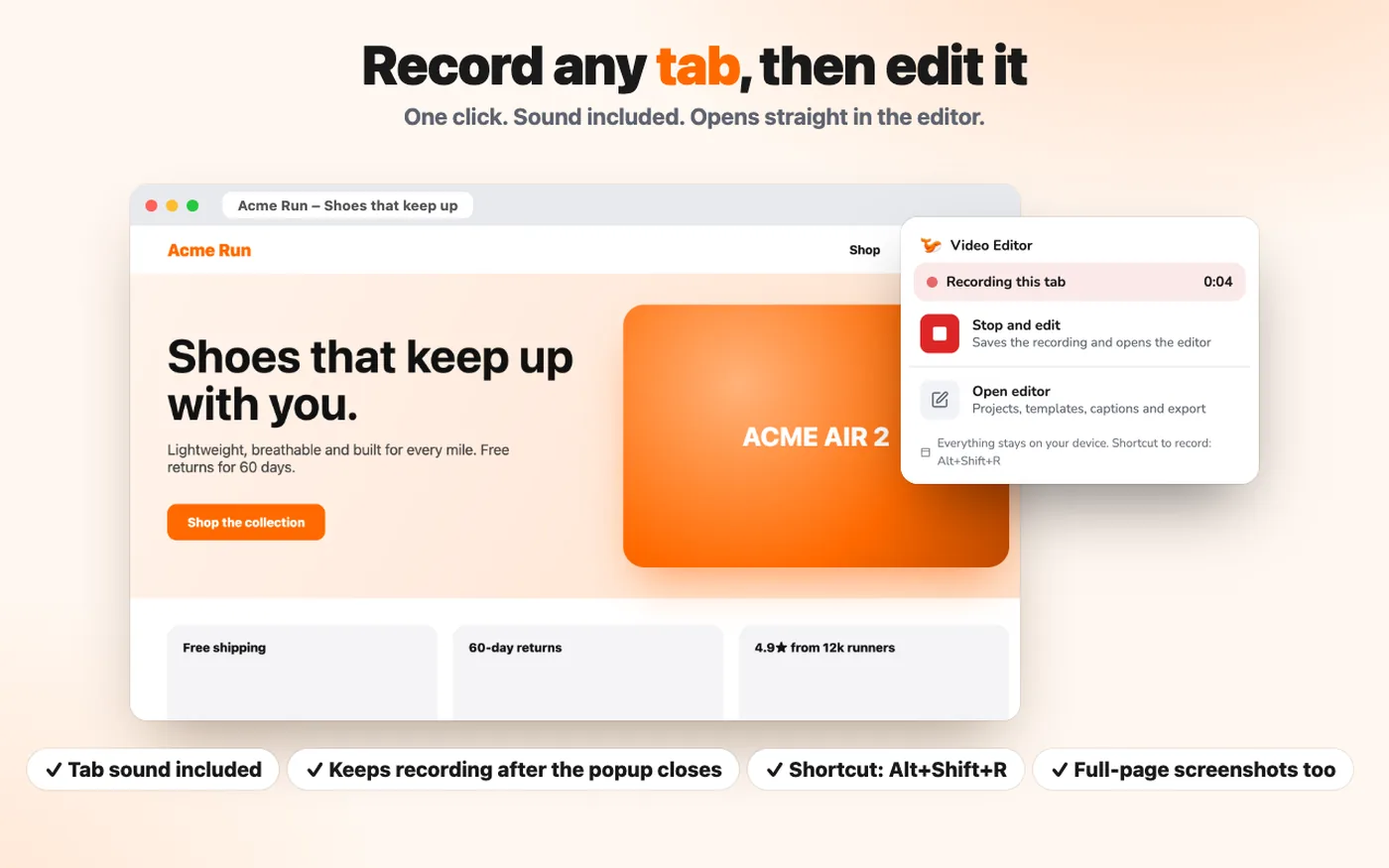
Click the icon again and press Stop and edit. The editor opens in a new tab with your recording on the timeline, ready to trim, caption and export.
Tips
- Tab audio keeps playing for you while recording. If a site is silent in the recording, check that the tab is not muted.
- Want to add your voice or a camera bubble? Use the Record panel inside the editor.
Frequently asked questions
Is the recording uploaded anywhere?
No. It is saved on your device and opened in the editor.
Why does Chrome not allow recording some pages?
Chrome blocks capture of internal pages such as chrome:// pages and the Web Store. Regular websites work.
Video Editor runs in your browser. No account, no uploads.
Open the editor