 Video EditorOpen the editor
How to take a full-page screenshot in Chrome
Need the whole page, not just what fits on screen? The Video Editor extension scrolls the page, captures each part and stitches it into one tall image that opens in the editor.
1Click the toolbar icon
On the page you want to capture, click the Video Editor icon. Choose Screenshot: full page. For just what you see, choose Screenshot: visible area.
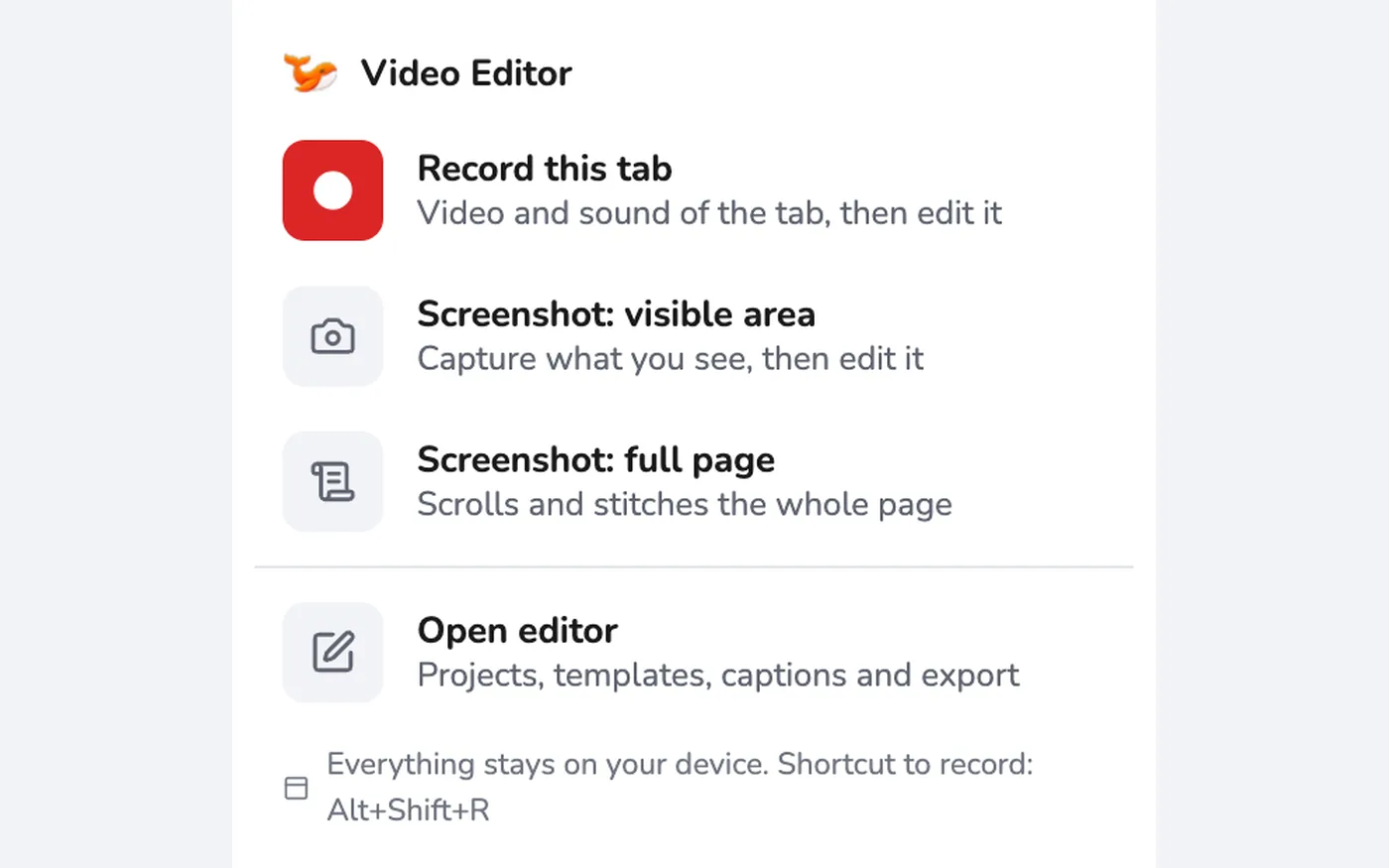
2Wait a few seconds
The page scrolls briefly while it is captured. Sticky headers are hidden after the first slice so they do not repeat, and the page returns to where you were. Long pages take longer because Chrome limits how fast pages can be captured.
3Edit in the editor
The stitched image opens in the editor, with the canvas set to the closest size. Crop it with the corner handles, add text, arrows or shapes, blur private details, and export as PNG, JPG or part of a video.
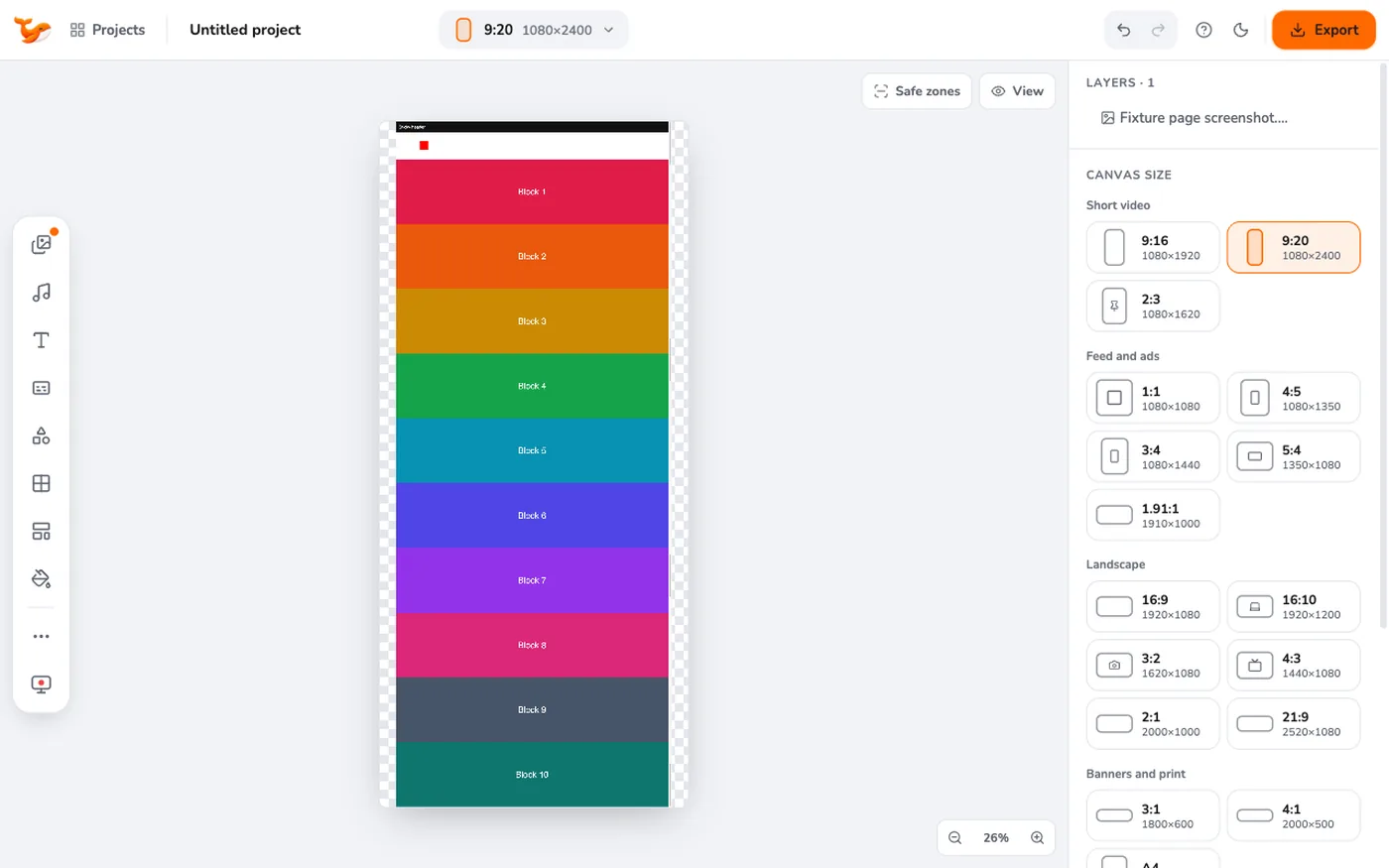
Tips
- Scroll to the top first and wait for lazy-loaded images to finish before capturing.
- To hide names or emails, see blurring private information.
Frequently asked questions
How tall can a page be?
Very long pages are capped at about 16,000 pixels of height so the image stays reliable.
Does it capture pages behind a login?
Yes, it captures what your tab shows. Nothing is sent anywhere.
Video Editor runs in your browser. No account, no uploads.
Open the editor