 Video EditorOpen the editor
Blur faces and private information in a video
Sharing a screen recording or street footage? Blur masks hide whatever should stay private, and they exported baked into the video.
1Add a privacy blur
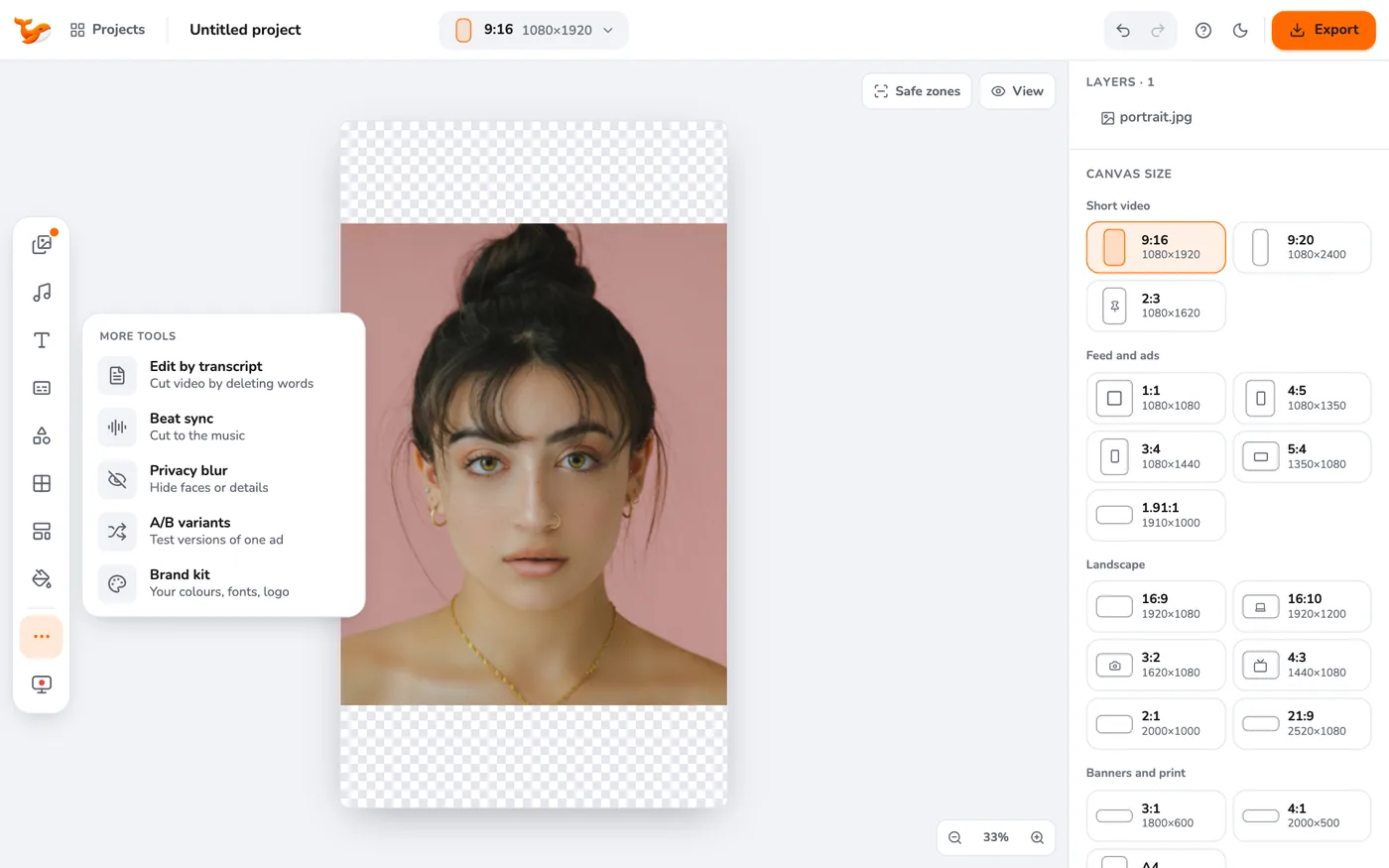
Open More tools and choose Privacy blur. A blur box is added to the middle of the canvas.
2Place it
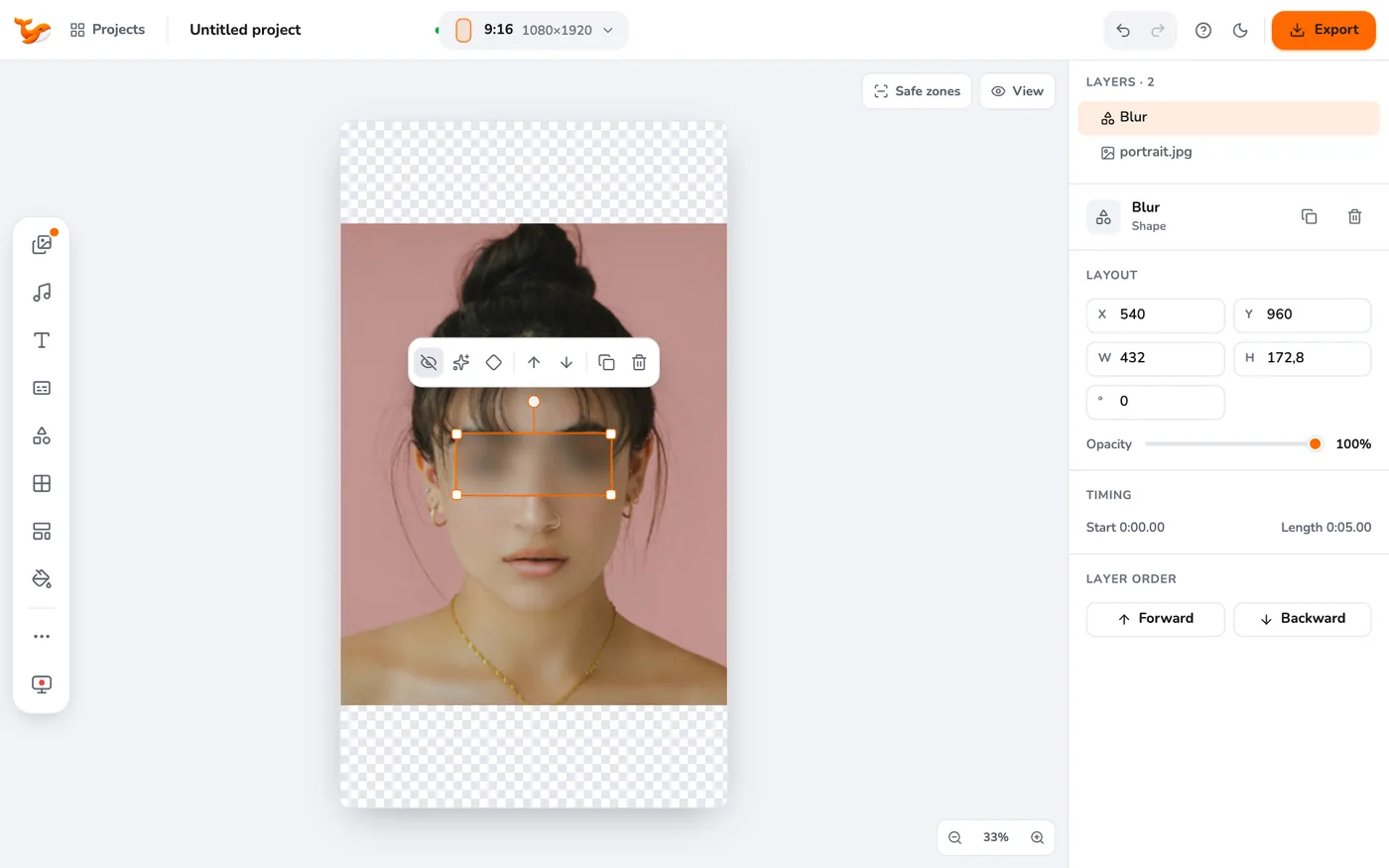
Drag the box over the face or text and use the handles to resize. Corner roundness can be adjusted to follow a face shape.
3Choose blur or mosaic
Open Privacy mask in the toolbar of the box. Pick Blur or Mosaic and set the strength.
4Make it last as long as needed
On the timeline, drag the blur clip so it covers the right moment. For a moving subject, add keyframes to follow it.
Tips
- Use mosaic for text and blur for faces. Both are stronger when you raise the strength.
- Always check the exported video before you share it.
Frequently asked questions
Can the blur be removed from an exported video?
No. The blur is part of the video you export. Keep your project if you may need the original.
Try it yourself
Video Editor runs in your browser. No account, no uploads.
Open the editorRelated guides
Chrome extensionHow to take a full-page screenshot in ChromeCapture a whole web page as one image with the Video Editor extension, then edit, annotate and export it. No upload needed.EffectsAnimate with keyframes and enter and exit animationsAnimate any layer with keyframes for position, size, rotation and opacity, plus one-click enter and exit animations and easing.Chrome extensionHow to record a browser tab with soundRecord any Chrome tab with its audio in one click with the Video Editor extension, then edit and export it. Nothing is uploaded.