 Video EditorOpen the editor
Export a video for every platform at once
One finished video, many sizes. The export window has platform presets and lets you tick several ratios to render them all in one run.
In this guide
1Click Export
Press the orange Export button in the top right. Nothing is uploaded: the video is rendered on your computer.
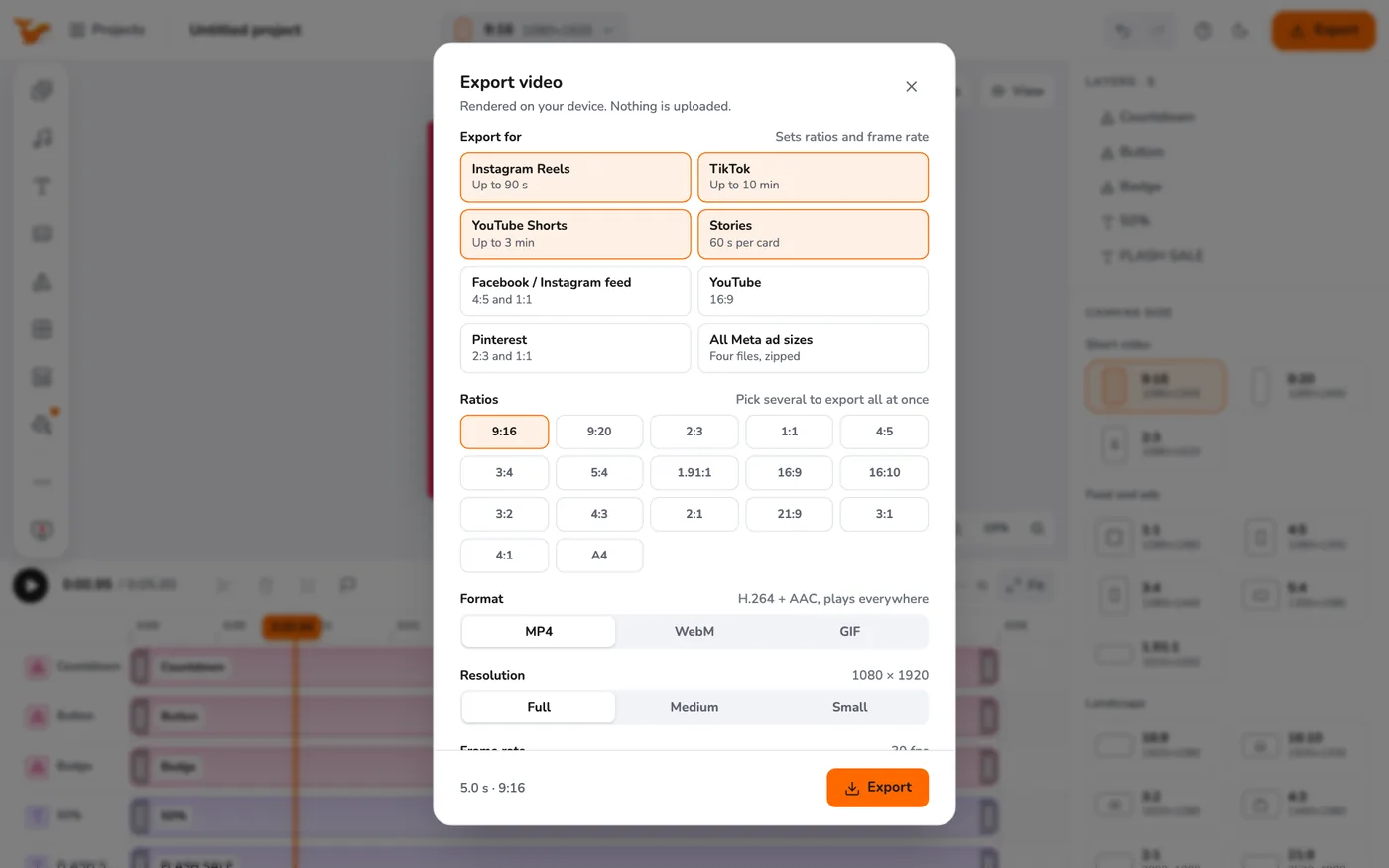
2Choose a platform preset
Pick Instagram Reels, TikTok, YouTube Shorts, Stories, Facebook / Instagram feed, YouTube, Pinterest or All Meta ad sizes. A preset sets the ratios and frame rate for you.
3Or pick ratios yourself
Under Ratios tick several at once, for example 9:16, 1:1 and 4:5. Each ratio becomes its own file. With more than one file you get a single ZIP.
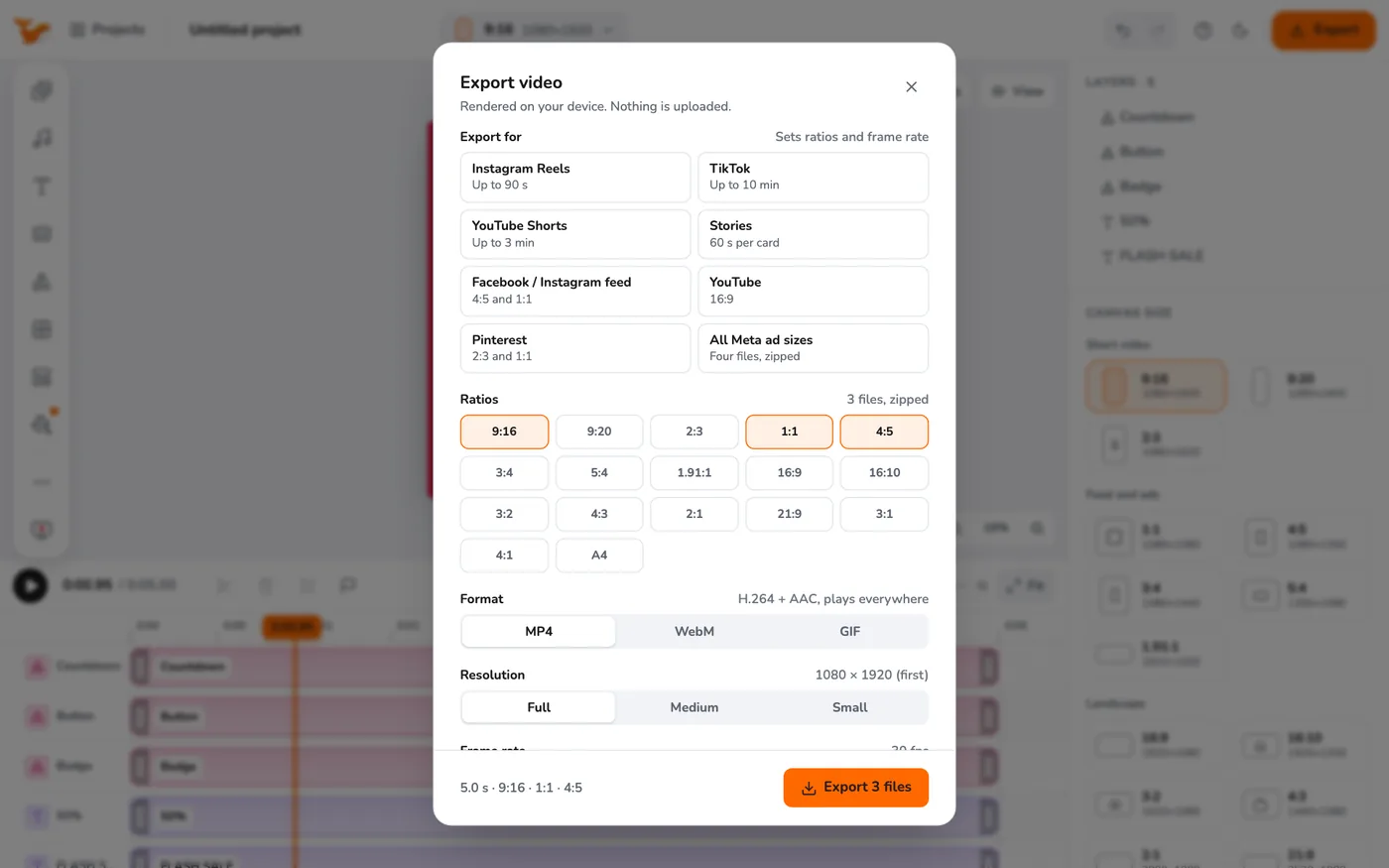
4Press Export and keep working
A small card at the bottom right shows progress and the time left. You can keep editing: the export uses a snapshot of your project. When it finishes the file downloads, and the card has a Download again button.
Tips
- Exports are fastest on a computer with a GPU. Pausing the preview while exporting helps long videos.
- See GIF, WebM and file size limits for other formats.
Frequently asked questions
Why is the export slow?
Rendering happens on your device. Close heavy tabs, pause the preview, and try a lower resolution for very long videos.
Can I export a still image?
Yes. A project with no video exports as PNG or JPG.
Video Editor runs in your browser. No account, no uploads.
Open the editor