 Video EditorOpen the editor
Export a GIF or WebM and set a file size limit
Some places need a small file, such as email, chat apps and ad uploaders with a size cap. The export window lets you pick a format and a maximum size.
In this guide
1Pick a format
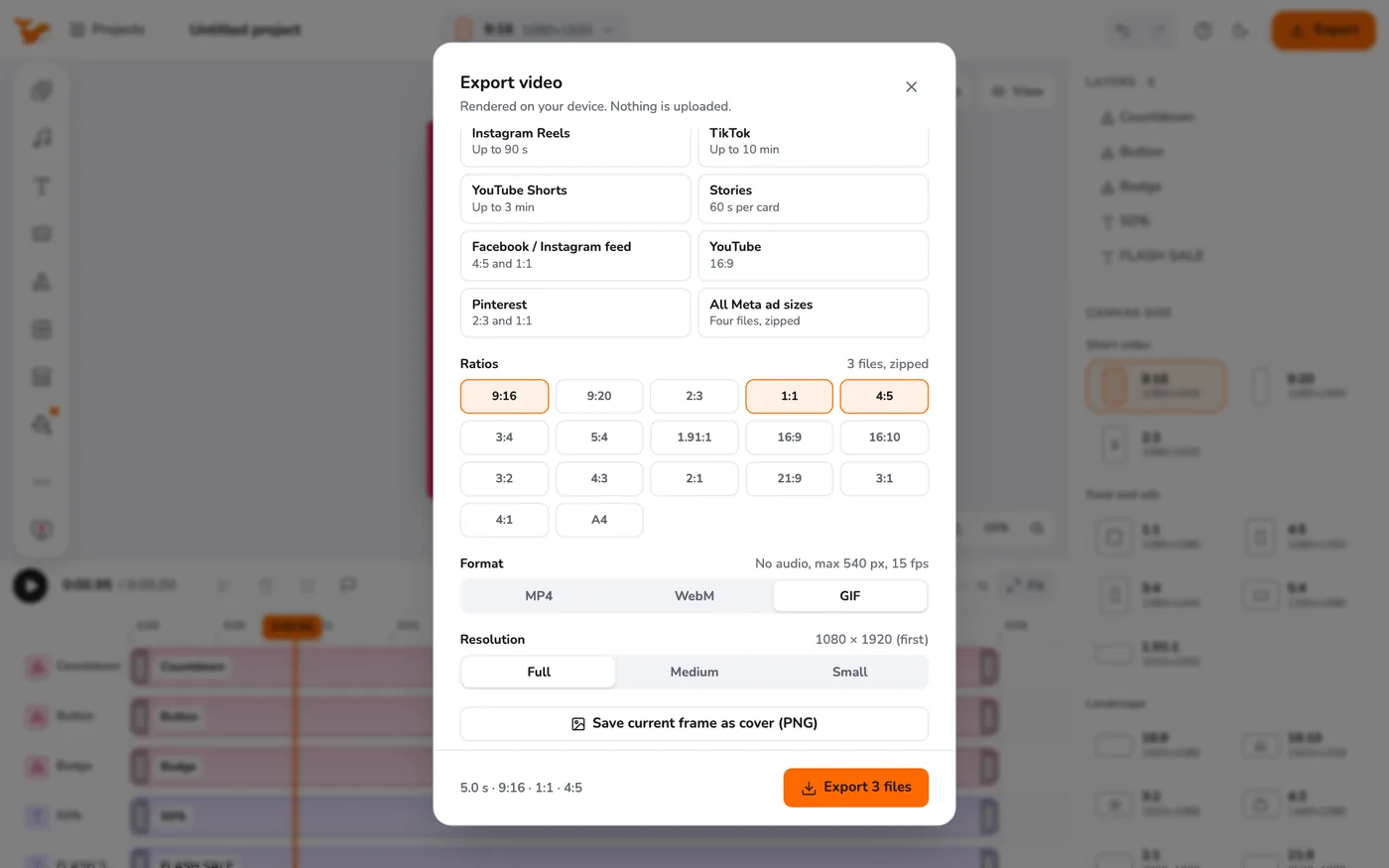
In the Export window choose MP4 (H.264 + AAC, plays everywhere), WebM or GIF (silent, looping, great for short clips).
2Set resolution and frame rate
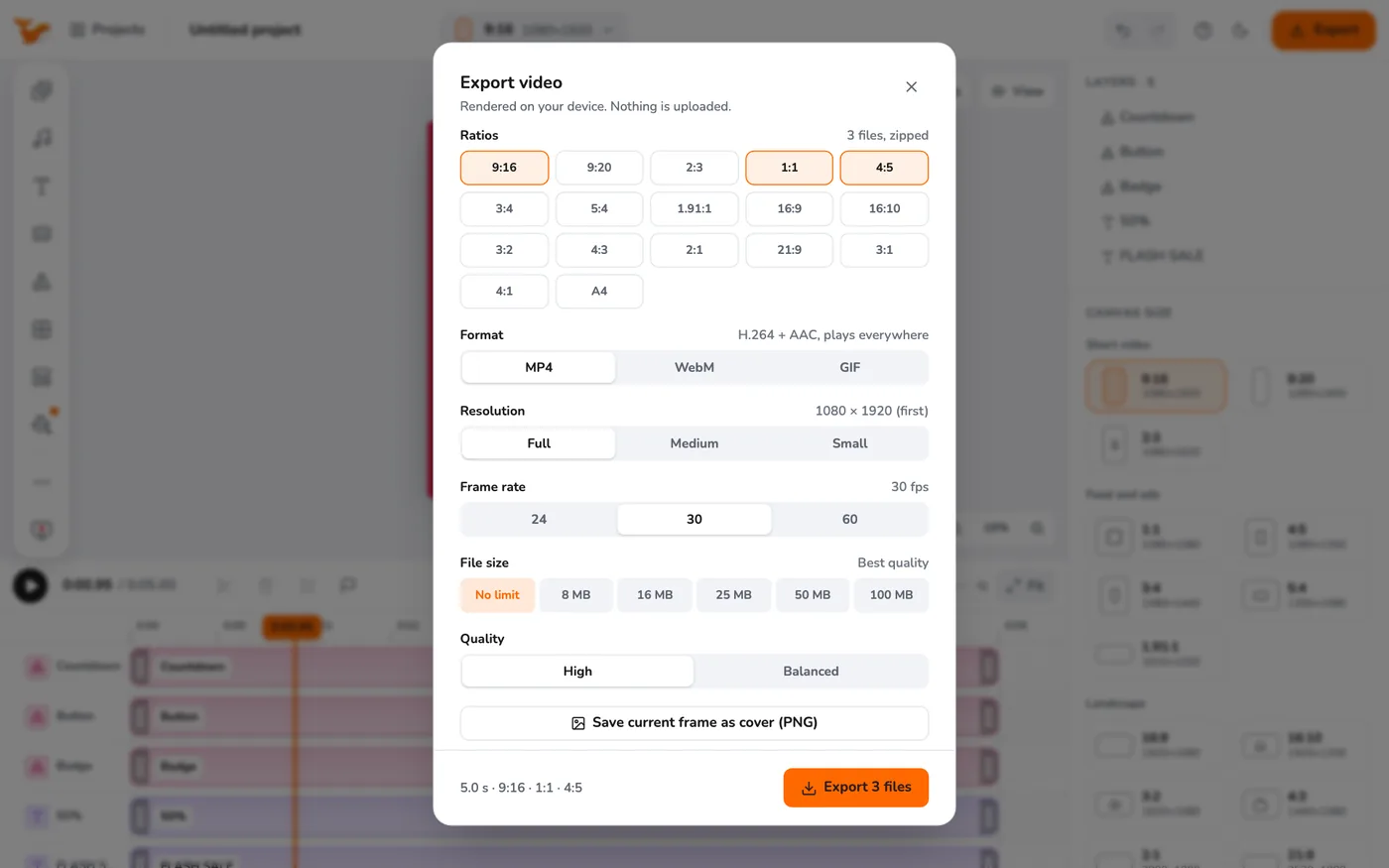
Choose Full, Medium or Small resolution, and 24, 30 or 60 frames per second. Lower values make smaller files and faster exports.
3Cap the file size
Under File size choose No limit, 8 MB, 16 MB, 25 MB, 50 MB or 100 MB. Quality then adjusts automatically to land just under the limit. If the video is too long to fit, the app warns you.
4Choose quality when there is no limit
With No limit selected you can pick High or Balanced quality.
Tips
- For GIFs keep clips short (under 10 seconds) and use a Small resolution.
- An 8 MB limit suits many chat apps and email.
Frequently asked questions
Does GIF have sound?
No. GIF has no audio.
The file came out above my limit.
Try Small resolution, a lower frame rate, or a shorter video.
Video Editor runs in your browser. No account, no uploads.
Open the editor